Connect WhatsApp to Pipedrive: Setup Guide
Your sales team works in Pipedrive. Your customers write on WhatsApp. Usually that means someone copies chats into notes by hand, or the context never makes it into the CRM. WhatsMCP's native Pipedrive connector closes that gap. Every WhatsApp conversation is copied to the matching Pipedrive person as a note, and a WhatsApp panel on Person and Deal pages lets you read the chat and reply without leaving Pipedrive.
This guide covers both kinds of WhatsApp number WhatsMCP supports:
- Personal (QR): your existing WhatsApp, linked like WhatsApp Web by scanning one QR code.
- Business: an official WhatsApp Business API number on Meta's Cloud API, connected with Facebook.
The Pipedrive part is the same for both. Only adding the number and the sending rules differ, and the guide points out where.
What the Pipedrive connector does
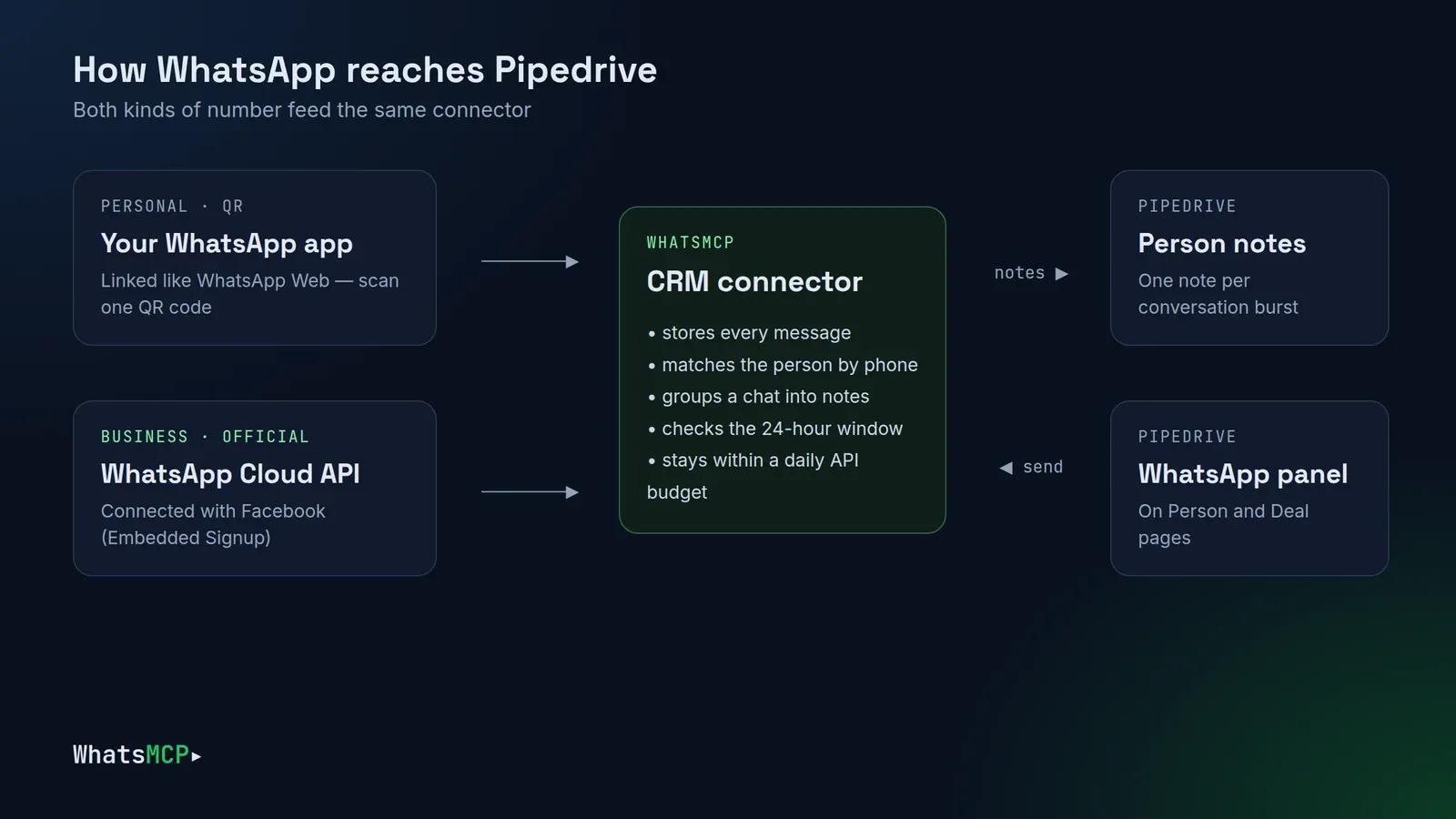
- Logs every chat on the person. Messages in a one-to-one chat are written as a note on the Pipedrive person whose phone number matches. If nobody matches, WhatsMCP can create the person for you (you can turn this off).
- Keeps notes readable. Messages less than 15 minutes apart share one note, so a back-and-forth reads as one conversation rather than fifty separate entries. New messages show up within about a minute.
- Starts with recent history. When you start syncing a number, its last 7 days of chats are copied first, then everything new.
- Lets you send from Pipedrive. The WhatsApp panel on Person and Deal pages shows the recent chat and has a send box. Replies go out from your WhatsApp number and are logged like any other message.
- Follows WhatsApp's rules for you. On a Business number, the panel offers free text only inside Meta's 24-hour window and switches to approved templates after it.
No Zapier, no webhook receiver, no code. If you'd rather build your own sync with webhooks and the REST API, see Sync WhatsApp with HubSpot and Pipedrive.
Personal (QR) or Business: which number to sync
Both work with the connector. The difference is how the number connects to WhatsApp, and what that allows.
| Personal (QR) | Business (official API) | |
|---|---|---|
| How it connects | Linked device: scan a QR code in WhatsApp → Linked devices | Meta's WhatsApp Cloud API, via Connect with Facebook |
| Phone needed | Your phone with WhatsApp | No phone; Meta's cloud sends |
| Sending from Pipedrive | Free text at any time | Free text within 24 h of the person's last message; approved templates after that |
| Business name and verification | Your normal WhatsApp profile | Your verified business name |
| Meta charges | None | Meta bills its per-message charges to your WhatsApp Business Account |
| Risk | Unofficial: WhatsApp may restrict a linked device, and a contact can hide a chat from linked devices | The route Meta supports for business automation |
| Plans | Personal plans | Business plans (first one starts with a 7-day free trial) |
Our recommendation: use a Business number for customer-facing sales and support, and the Integrations page says so too. Use a Personal number when the relationship already lives on someone's own WhatsApp, such as a founder's or an account manager's. For a deeper comparison, read Personal WhatsApp vs WhatsApp Business API.
Before you start
- A WhatsMCP workspace. Create one free with your name and email if you don't have one.
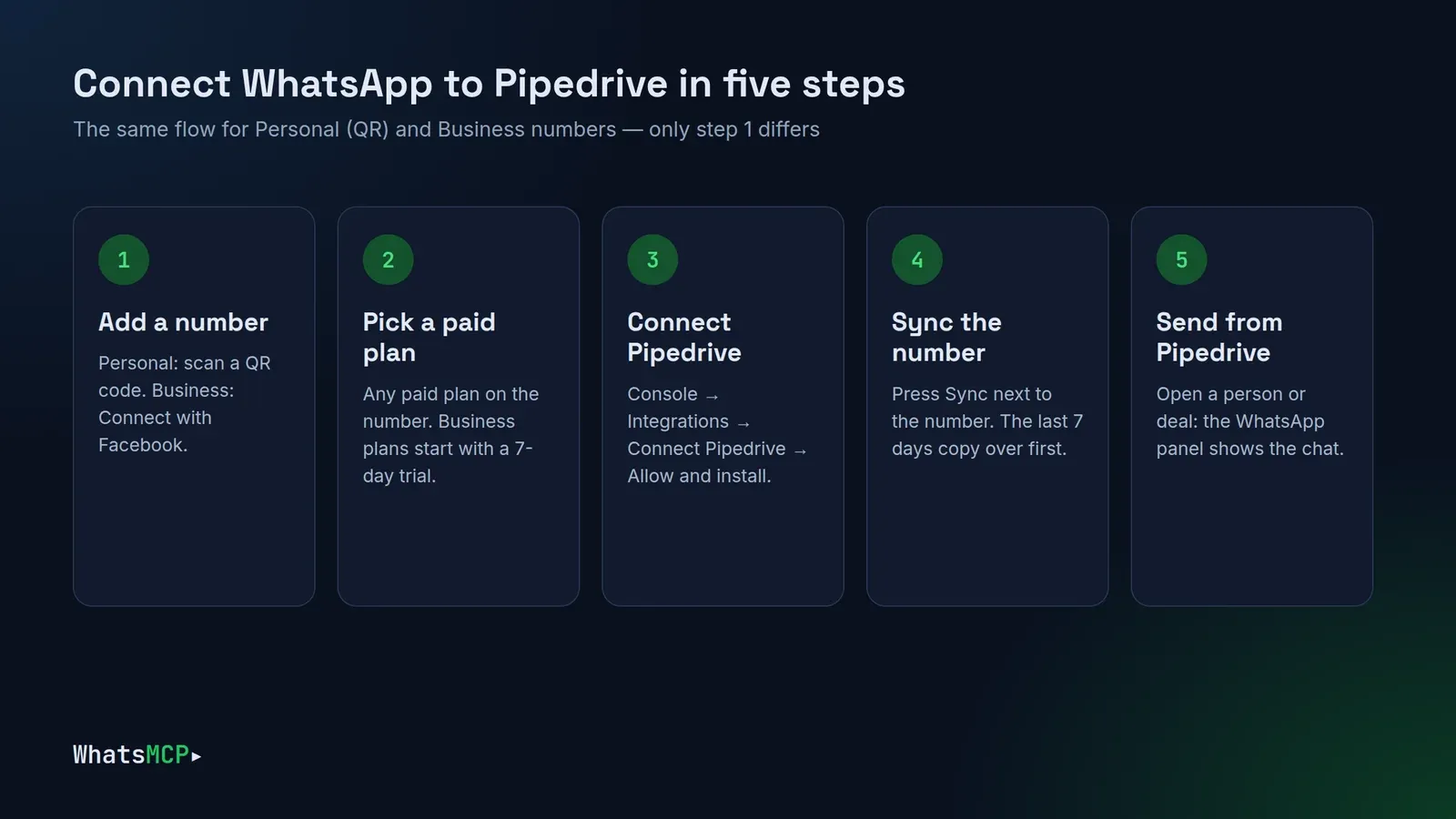
- A WhatsApp number on a paid plan. The connector syncs numbers on a paid plan. A number on the Free plan shows Choose a paid plan first on the Integrations page.
- A Pipedrive account that is allowed to install apps in your company. Pipedrive asks you to approve the app during setup.
Step 1: Add your WhatsApp number
Skip this step if the number already shows in Fleet.
Personal number: scan a QR code
In the console, open Fleet → Add Number and choose Personal WhatsApp → Link a device via QR. On your phone, open WhatsApp → Settings → Linked devices → Link a device and scan the code. The number appears in Fleet within a few seconds. The full walkthrough, including the network (egress) step, is in Connect WhatsApp to Claude. The steps are identical, and you don't need Claude for Pipedrive.
Business number: connect with Facebook
Open Fleet → Add Number, choose WhatsApp Business (Official Cloud API) and press Connect with Facebook. Meta's Embedded Signup opens: pick or create your WhatsApp Business Account, then the number. WhatsMCP registers the number on the Cloud API for you. If the number has a two-step verification PIN, turn it off or reset it in WhatsApp Manager first. More detail is in Connect WhatsApp Business API to Claude.
Step 2: Put the number on a paid plan
Open the number's plan page from Fleet and choose a plan:
- Personal numbers use the Personal plans.
- Business numbers are offered only the Business plans (see plans). Your workspace's first Business plan starts with a 7-day free trial: the card is taken at checkout and nothing is charged until the trial ends.
Only the workspace owner can check out.
Step 3: Connect Pipedrive
- In the console, open Integrations in the left menu.
- On the Pipedrive card ("Copy WhatsApp conversations to Pipedrive and send WhatsApp from a contact's page"), press Connect Pipedrive.
- Pipedrive opens and asks you to approve the WhatsMCP app for your company. It asks for:
- Contacts: full access, to find people by phone number, create a person when nobody matches, and write the chat notes. Pipedrive has no separate "notes" permission; notes come with contacts.
- Deals: read only, so the panel on a Deal page can find the deal's person.
- Basic information, which every Pipedrive app gets.
- Press Allow and install. You're taken back to Integrations, where the card now reads Pipedrive: your company with a green Connected chip.
WhatsMCP never sees your Pipedrive password. It receives an access token that you can revoke from Pipedrive at any time.
Step 4: Choose which numbers sync
The connected card lists every live number in your workspace, Personal and Business, each with its own button:
- Sync: price starts syncing that number and adds the CRM add-on for it, shown next to the button. The add-on is billed per synced number on the same billing cycle as the number's plan.
- Choose a paid plan first means the number is on Free. Upgrade it (Step 2) and the button appears.
- Personal numbers carry a reminder: Unofficial linked device: WhatsApp may restrict it, and a contact can hide a chat from linked devices.
Press Sync on the numbers you want. The last 7 days of chats are copied first, which can take a few minutes on a busy number, and then new messages follow as they arrive.
Below the numbers is a checkbox: Create a Pipedrive person for a number that matches nobody. It's on by default, so every WhatsApp contact gets a person. Turn it off if you want WhatsApp logged only for people already in Pipedrive. Chats with unknown numbers are then skipped.
What you'll see in Pipedrive
Open a person who has written to one of your synced numbers and look at their Notes.
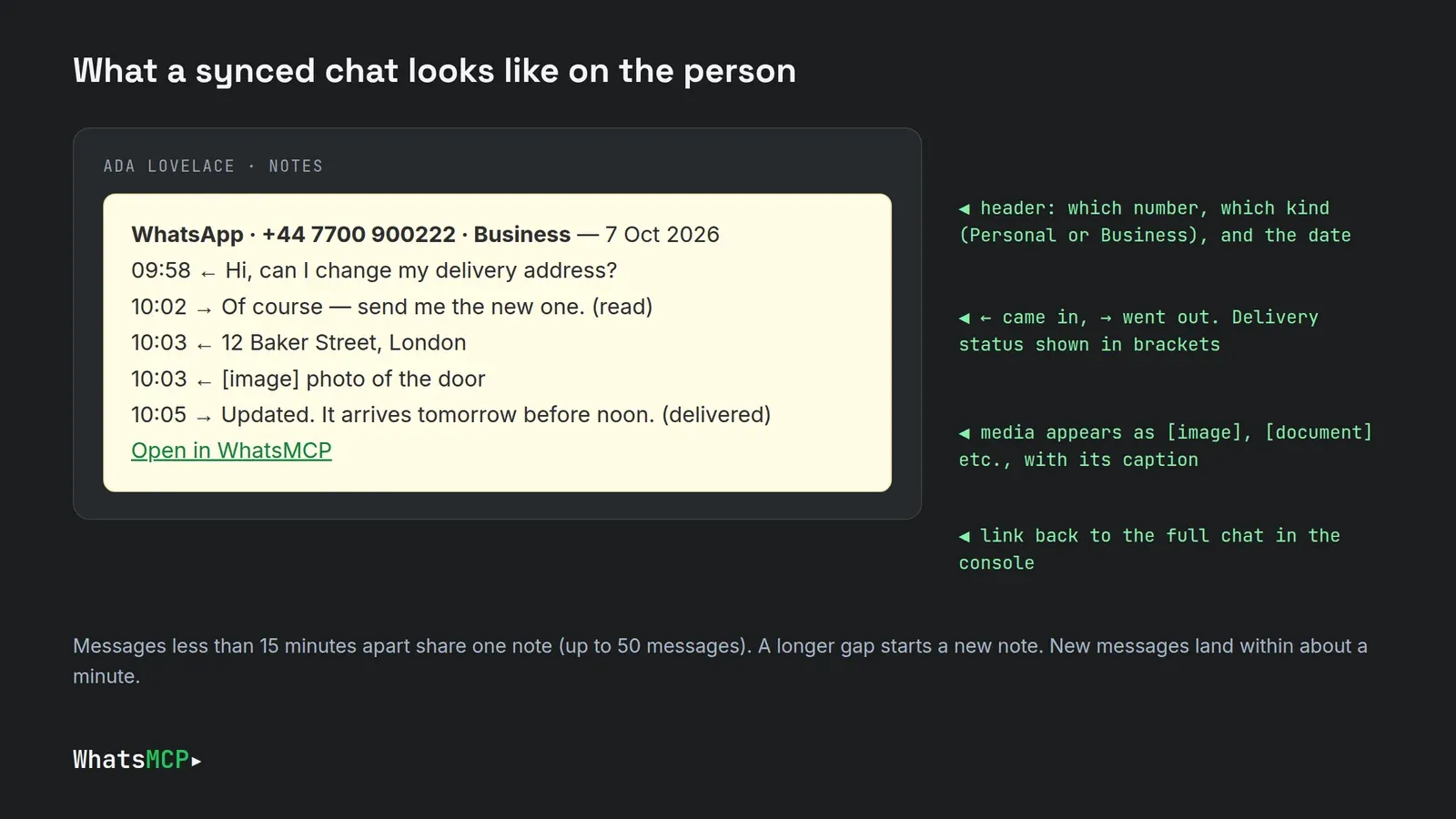
Each note starts with WhatsApp · your number · Personal or Business and the date. One line follows per message:
- ← means the person wrote to you; → means you wrote to them.
- Delivery status appears in brackets, for example (delivered) or (read).
- Photos, voice notes and documents appear as
[image],[audio],[document]and so on, with the caption or file name. The media itself stays in WhatsMCP. - Open in WhatsMCP links to the full chat in the console. Times in notes are UTC.
How people are matched. WhatsMCP looks the WhatsApp number up among your Pipedrive persons, in both international (+44 7700 900111) and national (07700 900111) form. The first match gets the notes, and later messages go straight to the same person.
What isn't synced: group chats and channels (only one-to-one chats), and anything older than the 7-day backfill.
Step 5: Send WhatsApp from Pipedrive
Open any Person or Deal in Pipedrive and find the WhatsApp panel in the sidebar. On a deal, the panel uses the deal's person. The panel shows the recent chat with that person and a box to send a message.
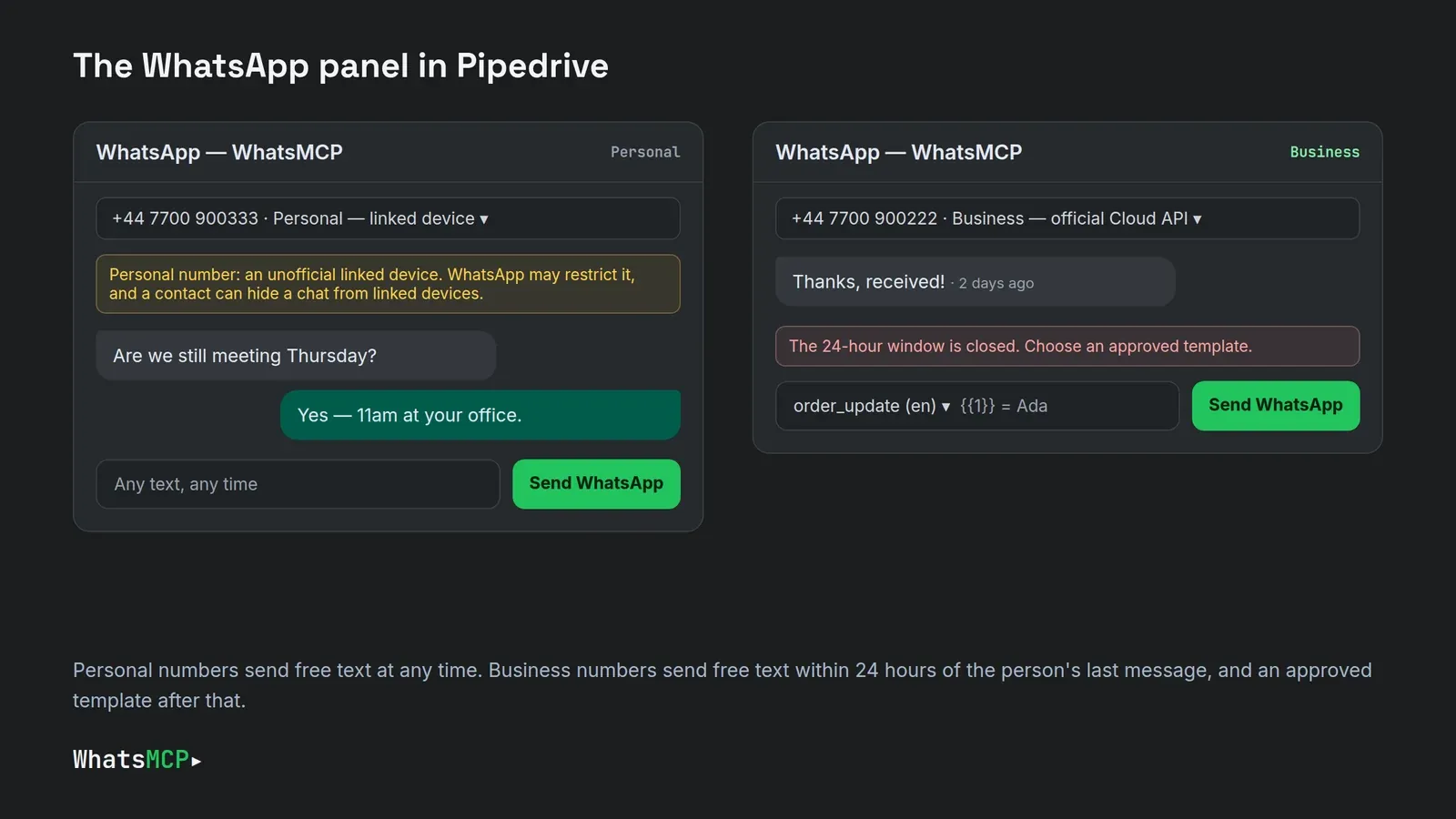
If more than one number syncs to this Pipedrive company, pick the number to send from at the top of the panel. Each one is labelled Personal: linked device or Business: official Cloud API. If the person has more than one phone number in Pipedrive, choose which one to write to.
Sending from a Personal number
Type and press Send WhatsApp. There is no time window: a Personal number can message anyone at any time, like your phone. The usual etiquette applies. Mass cold messaging from a personal number is the fastest way to get it restricted by WhatsApp.
Sending from a Business number
Meta's rules apply, and the panel enforces them before anything leaves:
- Inside the 24-hour window (the person wrote to you in the last 24 hours), you can type any text.
- Outside the window, the panel shows The 24-hour window is closed. Choose an approved template. Pick one of your approved templates, fill in its variables and send.
You create templates in WhatsMCP or WhatsApp Manager, and Meta approves them, usually within minutes. Our guide to WhatsApp message templates Meta approves covers categories, variables and common rejection reasons. Meta bills Business conversations to your WhatsApp Business Account; WhatsMCP adds no markup.
Every message sent from the panel is logged back to the person's notes like any other.
Billing: how the CRM add-on works
- Per synced number. Each number you sync to Pipedrive adds one CRM add-on to that number's subscription, on the same monthly or yearly cycle as its plan. The price is shown on the Sync button.
- Stopping. Press Stop syncing on a number. It keeps syncing until the end of the period you've already paid for, and the card shows Syncing until date. There's no refund for that period, and no further charge.
- Changing your mind. Press Resume before that date to keep the number syncing.
Disconnecting Pipedrive
On the Pipedrive card in Integrations, press Disconnect. Sync stops for every number. Then remove the app in Pipedrive under Tools and apps as well, as the card reminds you.
Disconnecting doesn't cancel the add-on on its own: the card keeps listing the numbers that still carry it. Press Stop syncing on each one to end it at the end of its paid period. Notes already written stay in Pipedrive.
Troubleshooting
The Pipedrive card says "Reconnect needed". Pipedrive stopped accepting WhatsMCP's access, usually because the app was removed in Pipedrive or the token was revoked. Sync pauses, and the person who connected Pipedrive gets an email. Press Reconnect, approve the app again, and sync resumes where it stopped.
No notes appear for a contact. Check, in order:
- The number shows a Stop syncing button on Integrations, meaning it is syncing.
- The chat is one-to-one, not a group.
- The person's phone in Pipedrive matches the WhatsApp number. If Create a Pipedrive person is off and nobody matches, the chat is skipped.
- The note may be on a different person with the same phone, such as a duplicate. Search Pipedrive for the number.
The panel says "No WhatsApp number is linked to this Pipedrive company". Start syncing at least one number on Integrations.
The panel says "This contact has no phone number". Add a phone to the person in Pipedrive.
The panel says "This panel could not be verified". Close the panel and open it again from Pipedrive. If it keeps happening, reconnect Pipedrive on Integrations.
A Personal number stopped syncing. Check its status in Fleet: if WhatsApp unlinked the device, scan a new QR code. Syncing picks up again once the number is back online.
FAQ
Can I sync several WhatsApp numbers to one Pipedrive company? Yes. Press Sync on each number; each adds its own add-on. In the panel, choose which number to send from.
Can I mix Personal and Business numbers? Yes. Each note says which kind of number the chat happened on, and the panel applies the right rules for the number you pick.
Does WhatsMCP slow down or use up my Pipedrive API limit? WhatsMCP keeps its Pipedrive calls within a small daily budget, so your own automations and other apps keep their share of the company's API limit.
Is old chat history imported? The last 7 days, when you start syncing a number. Older history stays in WhatsMCP and isn't written to Pipedrive.
Are attachments copied into Pipedrive? No. The note records that a photo, voice note or document was sent, with its caption or file name, and links to the chat in WhatsMCP.
Can I still use Claude, ChatGPT or the REST API on a synced number? Yes. Syncing to Pipedrive doesn't change anything else: the same number keeps working with Claude, ChatGPT, webhooks and the REST API. Messages an AI agent sends are logged to Pipedrive too.
Is it safe to use a personal number? A Personal number is an unofficial linked device. WhatsApp may restrict it, especially when it sends many messages to people who never wrote first. For customer-facing teams, use a Business number.
Get started
- Create your WhatsMCP workspace.
- Add a number by QR or with Facebook, and put it on a paid plan.
- Open Integrations → Connect Pipedrive, then press Sync on the number.
Your next WhatsApp conversation will be on the person in Pipedrive within a minute.
About WhatsMCP Engineering
Engineering Team at WhatsMCP. The team building WhatsMCP's MCP server and SIP bridge — the people who wrote the code these posts describe.