MCP server documentation
Quick start
1. Create a workspace     →  https://console.whatsmcp.com/register
2. Link a WhatsApp number →  Console → Pair device (scan the QR with your phone)
                             …or, for a Business (official) number: Add a number → Connect with Facebook
3. Give your client       →  https://api.whatsmcp.com/mcp
                             …and sign in when it asks. No key to paste.
For Claude Code that is two commands:
claude mcp add --transport http wamcp https://api.whatsmcp.com/mcp
claude mcp login wamcp
Then ask your agent: “list my WhatsApp accounts and show me the last few messages.”
Clients that cannot sign in — curl, CI, anything without OAuth — take a key in a header
instead: mint one, then see Connect your
client.
Register
Sign-up is self-serve and free — no card, no sales call.
| Create an account | https://console.whatsmcp.com/register |
| Sign in | https://console.whatsmcp.com/login |
You give a name and an email address. We send a confirmation link; opening it is where you choose a password. Confirming creates your workspace (tenant) on the free plan and drops you into a short setup wizard that walks the three steps that turn a bare account into a working integration: link a number, mint a key, and — optionally — point a webhook at your endpoint. It is derived from what you have actually done rather than a checklist you tick, so it disappears once you are set up and comes back if you unlink everything.
Everything lives in the console:
| Console page | What it is for |
|---|---|
| Fleet | Every linked number and whether it is connected |
| Pair device | Link a new WhatsApp number by QR |
| API keys | Mint and revoke keys; copy-paste connection examples |
| Webhooks | Inbound delivery endpoint and its recent attempts |
| Connections | Clients you signed in with OAuth, and a revoke button per client |
| Usage | Messages sent against your plan’s caps |
| Help | The connection details for your workspace, and which tools your plan includes |
Per-number pages (Messages, Contacts, Calls) hang off each account in the same console.
Link a WhatsApp number
A Personal number connects as a linked device, the same mechanism as WhatsApp Web. Your phone stays the primary device and can stay in your pocket afterwards. (For a number on Meta’s WhatsApp Cloud API, see Connect a Business number.)
From the console: open Pair device, then on the handset go to WhatsApp → Settings → Linked devices → Link a device and scan the code.
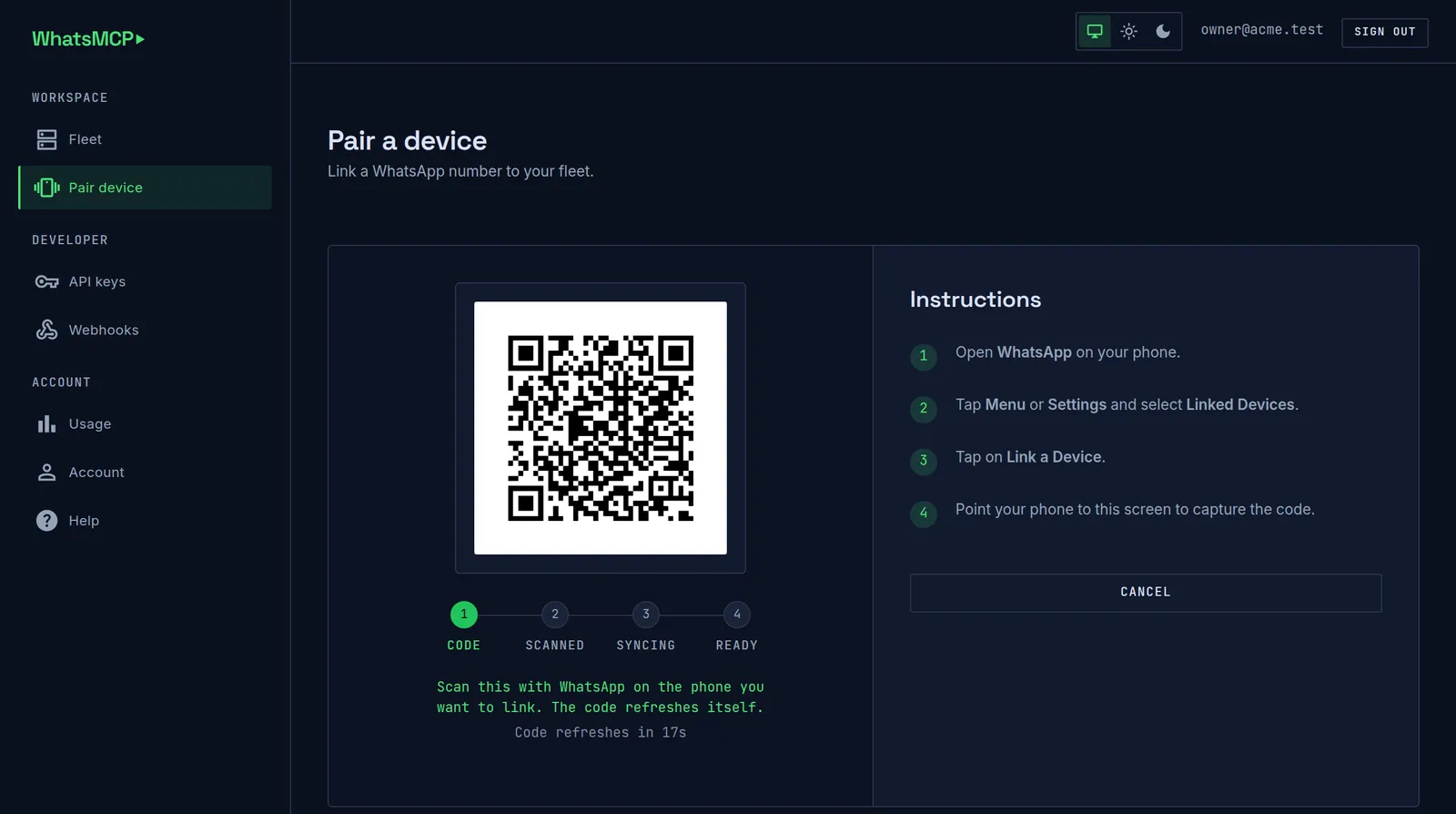
The code rotates roughly every 20 seconds and the page refreshes itself, so a stale QR never sits there failing to scan. The stepper underneath tracks the whole run: the handset accepts the code (scanned), the device logs in and pulls its history (syncing), and only then is the number ready to use.
From the agent, with the wa_pair_account tool:
// 1. start pairing — returns a QR as a base64 PNG for the user to scan
wa_pair_account()
→ { "pair_id": "…", "state": "qr", "qr_png_base64": "iVBORw0…", "instructions": "…" }

// 2. the code rotates about every 20 seconds — poll for the current one
wa_pair_status({ "pair_id": "…" })
→ { "state": "qr",     "qr_png_base64": "…" }     // show the new image
→ { "state": "paired", "instructions": "Linked. …" }  // done
Once state is paired the number appears in wa_list_accounts and is ready to use.
wa_unpair_account disconnects it again.
Connect a Business number
A Business (official) number runs on Meta’s WhatsApp Cloud API instead of as a linked device. It is officially supported by Meta, uses message templates, and pays Meta’s own per-message pricing, which Meta bills to your WhatsApp Business Account.
-
Connect. In the console choose Add a number → Connect with Facebook, then pick or create your WhatsApp Business Account and the number in Meta’s dialog. The number registers on the Cloud API by itself and appears in
wa_list_accounts. The same MCP connector serves both kinds of number — nothing changes in your client. -
Templates. Meta requires a pre-approved template to start a conversation, or to message someone more than 24 hours after they last wrote. Manage them with
wa_list_templates,wa_create_templateandwa_delete_template; Meta reviews each new one. Send one withwa_send_message:wa_send_message({ "account_id": "acct_…", "to": "447700900111", "template": "hello_world", "template_language": "en_US", "template_variables": ["Ada"] }) // fills {{1}}, {{2}}, … -
The 24-hour window. Within 24 hours of the customer’s last message you can reply with ordinary text and media. Outside it a free-form send is refused, and a template is required.
-
What a Business number cannot do. Groups, channels, contacts, history import, presence, reactions, edits, deletes, blocking and profiles are Personal-only. A tool that needs one of them answers with a
backend_capabilityrefusal naming the feature, andwa_list_accountslists each number’sbackendandfeaturesup front. -
Calls. A Business number takes WhatsApp calls on a line of its own. With Calls out on, the line also calls customers, from the Pipedrive call window or a phone on the line, once each customer has allowed your calls. Both are set up in the console, on the number’s SIP trunk page (titled Business calling for a Business number). Over MCP you ask for the permission: create a template with
call_permission: true, send it once Meta approves it, and read the customer’s answer as acall_permissionmessage. The calls themselves, in and out, are inwa_list_calls, as a Personal number’s are. Call customers on WhatsApp from your Business number walks through it, with WhatsApp’s limits and what calls cost. -
Plans. Business numbers have their own tiers on the plans page, each starting with a 7-day free trial.
Create an API key
Optional. A client that can sign in with OAuth never needs one — skip to Connect your
client. Keys are for curl, for CI, and for clients that cannot do
OAuth.
Console → API keys → Create key.
Keys look like wamcp_live_XXXXXXXXXXXX_… and are shown exactly once — we store only a
hash, so a lost key is replaced, never recovered. Mint one key per client or per environment
and revoke individually.
The key is the workspace. Every tool is scoped to it: there is no tenant argument to pass and no way for one workspace to reach another’s messages.
Connect your client
Any MCP client that speaks Streamable HTTP will work. There is one endpoint:
| Endpoint | https://api.whatsmcp.com/mcp |
Connected with https://app.whatsmcp.com/mcp before? It still works — same server, same
tools, same sign-in — so there is nothing to change.
There are two ways to prove who you are against it.
OAuth — recommended, and what every client below does by default. The client reads the server’s own metadata, registers itself, and sends you to the console to approve it. Nothing is pasted anywhere: no key is created, none is stored in a config file, and you can revoke one client without touching the others from Console → Connections.
An API key — Authorization: Bearer <your key>, or x-api-key: <your key> for clients
that reserve Authorization for a token they manage themselves. Use it for curl, for CI,
and for clients that cannot do OAuth. See Create an API key.
Claude Code
claude mcp add --transport http wamcp https://api.whatsmcp.com/mcpThen run /mcp inside Claude Code, pick Authenticate, and sign in in the browser window
it opens. claude mcp login wamcp does the same thing from the shell. claude mcp list
should then show wamcp connected.
With a key instead, and no sign-in step:
claude mcp add --transport http wamcp https://api.whatsmcp.com/mcp \
  --header "Authorization: Bearer YOUR_KEY"
Claude Desktop and claude.ai
Open Settings → Connectors → Add custom connector, put the endpoint in the URL field, leave Authentication on OAuth, and sign in when Claude asks. The dialog discovers the flow on its own.
The authentication type is fixed when the connector is added. A connector created with a header or an API key never switches itself to OAuth later — delete it and add it again.
To use a key here instead, set Authentication to None and add one entry under Additional request headers:
| Header name | x-api-key |
| Value | YOUR_KEY |
Paste the key on its own — no Bearer in front of it. Authorization is not offered in
that dialog: it is kept for the OAuth token Claude manages itself. Header values are stored
once and never shown again, so if the connector will not connect, replace the header rather
than trying to read it back — a wrong key and a missing one look identical from the outside.
If you edit the configuration file instead of using the dialog, it has no such restriction:
{
  "mcpServers": {
    "wamcp": {
      "type": "http",
      "url": "https://api.whatsmcp.com/mcp",
      "headers": {
        "Authorization": "Bearer YOUR_KEY"
      }
    }
  }
}
ChatGPT
Turn on Developer mode under Settings → Security and login (availability depends on your ChatGPT plan), then go to Plugins, press +, and give it the endpoint.
OAuth is the only way in here. ChatGPT cannot present a custom API key to an MCP server, so the key path in this page does not apply to it — there is no header field to put one in. The sign-in flow is the whole configuration.
Codex
codex mcp add wamcp --url https://api.whatsmcp.com/mcpThat one command is the whole setup: there is no separate login step. Codex adds the server,
sees that it signs in with OAuth (Detected OAuth support. Starting OAuth flow…) and opens
the sign-in in your browser; approve it there and the terminal prints Successfully logged in.
To sign in again later — say, after revoking the grant in
Console → Connections — run
codex mcp login wamcp.
Or write the same server into ~/.codex/config.toml by hand; the URL is all it needs. A
server added that way has not signed in yet, so run codex mcp login wamcp once:
[mcp_servers.wamcp]
url = "https://api.whatsmcp.com/mcp"
To use a key instead, keep it in the environment and name the variable when you add the server. Codex then skips the sign-in:
export WHATSMCP_API_KEY=wamcp_live_…
codex mcp add wamcp --url https://api.whatsmcp.com/mcp --bearer-token-env-var WHATSMCP_API_KEY
The same thing in config.toml:
[mcp_servers.wamcp]
url = "https://api.whatsmcp.com/mcp"
bearer_token_env_var = "WHATSMCP_API_KEY"
Codex sends that as Authorization: Bearer …. If you would rather set headers yourself, use
http_headers for static values and env_http_headers to pull them from the environment.
Every other client
Clients differ in where they keep configuration, but they all need the same thing: the
endpoint added as a remote HTTP (not stdio) server. A client that supports OAuth will
find the sign-in flow by itself once it has the URL. One that does not needs the key in
Authorization, or in x-api-key where it will not let you set Authorization.
If a client only offers “a command to run”, it does not support remote servers — there is no local process to point it at.
How the OAuth flow works
Worth reading only if you are integrating a client of your own, or wondering what your agent just agreed to. Everything here is standard OAuth 2.1 — no custom handshake.
The server publishes two metadata documents, which is how a client bootstraps with nothing but the endpoint URL:
/.well-known/oauth-protected-resource/mcp | RFC 9728 — names the resource and points at its authorization server |
/.well-known/oauth-authorization-server | RFC 8414 — the endpoints, grants and scopes below |
A client registers itself either by Dynamic Client Registration (RFC 7591, at
/oauth/register) or by publishing a Client ID Metadata Document whose URL is its client
id — both are supported, and the vendors above use one or the other. Then it is an ordinary
authorization-code flow with PKCE (S256 only): you land on the consent page at
https://console.whatsmcp.com/oauth/authorize, approve, and the code is exchanged at
https://api.whatsmcp.com/oauth/token.
Authorization codes are single-use, refresh tokens rotate on every use, and a retired refresh
token being replayed revokes the whole grant rather than issuing another. Tokens are bound to
this resource (RFC 8707) and revocable at /oauth/revoke (RFC 7009).
Seven scopes are advertised and recorded on each grant:
| Scope | Covers |
|---|---|
wa:accounts | Listing your numbers, plan and service version |
wa:read | Messages, chats, contacts, profiles, groups, calls, media |
wa:send | Sending, reacting, editing, group and blocklist changes |
wa:pair | Linking and unlinking numbers |
wa:webhooks | Registering and managing inbound delivery |
wa:egress:socks5, wa:egress:wireguard | Per-account egress configuration |
Scope is recorded, not enforced at the tool layer. Which tools a grant can actually reach is decided by your plan, exactly as it is for an API key. Treat the scope list as a description of what the connection is for, not as a sandbox.
Grants are listed and revocable at Console → Connections. Revoking one there disconnects that client and nothing else.
Check it by hand
curl -s https://api.whatsmcp.com/mcp \
  -H "Authorization: Bearer YOUR_KEY" \
  -H "Content-Type: application/json" \
  -H "Accept: application/json, text/event-stream" \
  -d '{"jsonrpc":"2.0","id":1,"method":"tools/list","params":{}}'
Two things catch people out when driving the endpoint directly:
- The reply may be server-sent-event framed — one
data:line per message. - A tool result is text that is itself JSON, so it is parsed twice.
The endpoint is stateless (MCP 2026-07-28 removed protocol sessions), so it needs no sticky routing and it is safe to call from anywhere.
Tools
46 tools. Which ones appear in tools/list depends on your plan and on the kind of number — a tool your plan does not
include is absent, not present-and-refusing. Console →
Help lists the set your workspace gets, marked
against what your plan includes.
Start with wa_list_accounts. Every other tool takes an account_id from it, and a
number is usable only while its status is live (its state then reads connected).
Accounts, pairing and plan
| Tool | Does |
|---|---|
wa_list_accounts | Lists your linked numbers: account_id, phone, push_name, state (pairing, connected, disconnected, locked, unlinked), and whether each is actually working: status (live, connecting, starting, not_running, whatsapp_down, suspended, pairing, unlinked, locked), status_reason, status_since and, when it is not live, what_to_do — the REST docs list what each status means |
wa_pair_account | Starts linking a new number; returns a QR as a base64 PNG |
wa_pair_status | Polls a pairing; returns a fresh code while one is waiting |
wa_unpair_account | Disconnects a linked number |
wa_set_profile_photo | Replaces a number’s own profile photo — the picture every contact sees — from a base64 JPEG, PNG or GIF (at most 5 MiB; center-cropped to a square and scaled to at most 640×640), or removes it with remove: true. The old photo cannot be restored |
wa_get_plan | Your plan, its limits, and usage so far against the message and account caps — call it to see why a send was refused, or how much headroom is left. Also reports the service’s version (server_version, server_build_date) |
wa_report | Sends a bug report, feature request or feedback to the WhatsMCP team: a type (bug, feature_request or feedback), a one-line title and a message. The team sees which workspace sent it, and a reply, if one is needed, comes by email. On every plan |
Messaging
| Tool | Does |
|---|---|
wa_send_message | Sends text, an image, a document or audio from one of your numbers |
wa_list_messages | Reads messages across accounts, oldest first, paged by cursor |
wa_get_chat | Recent messages for one account, no cursor — a one-off catch-up |
wa_get_message | One stored message, by message_id or by cursor — the message a webhook just announced, or the one you are about to react to or edit |
wa_get_media | Downloads a received attachment by message_id (base64 + mime) |
wa_load_history | Asks a Personal number’s phone for older messages in one conversation, before the oldest one stored. The phone must be online; read the result with wa_get_chat (loaded history never fires webhooks) |
Message templates (Business numbers)
Meta requires a pre-approved template to start a conversation from a Business (official)
number, or to message someone more than 24 hours after they last wrote. Send an approved one
with wa_send_message — see Connect a Business number.
| Tool | Does |
|---|---|
wa_list_templates | A Business number’s templates, each with its review status (APPROVED, PENDING, or REJECTED with Meta’s reason) and how many variables its body needs, plus call_permission: true on one that asks to allow calls. Only an APPROVED one can be sent |
wa_create_template | Submits a new MARKETING or UTILITY template for Meta’s review: an optional text header, a body of up to 1024 characters with {{1}}, {{2}}, … variables, an optional footer and up to 10 buttons — or, instead of buttons, call_permission: true |
wa_delete_template | Deletes a template, in one language or in all of them |
Asking to call. call_permission: true adds WhatsApp’s call permission request to the
template: under your text the customer gets Allow and Don’t allow, and can allow calls
for 7 days or for good. Meta takes it on MARKETING and UTILITY templates only, and never
beside buttons, so a draft with both is refused before it reaches Meta. Leave the body without
variables if the Pipedrive call window should be able to send the template too. The answer
comes back as a call_permission message.
wa_create_template({ "account_id": "acct_…", "name": "call_ok", "category": "UTILITY",
                     "body": "Can we call you on WhatsApp about your order? You can change this any time.",
                     "call_permission": true })
Message operations
Each of these acts on a message that already exists, so each one takes the message_id that
wa_list_messages gave you.
| Tool | Does |
|---|---|
wa_react | Reacts with an emoji; an empty reaction removes one you sent |
wa_edit_message | Edits a message you sent — WhatsApp accepts an edit for about 20 minutes |
wa_delete_message | Deletes for everyone. WhatsApp has no true delete; this revokes the message, which every modern client honours |
wa_set_presence | Announces typing (composing/paused) to a chat, or sets an account available/unavailable. Fire-and-forget — there is no delivery confirmation |
Contacts and profiles
| Tool | Does |
|---|---|
wa_list_contacts | The account’s address book, paged — pass query to find contacts by name or number |
wa_get_profile | Looks up who a number is on WhatsApp: whether it is registered, its public name, about text, picture, and a business’s categories, contact details and hours |
Unlike wa_list_contacts, wa_get_profile asks WhatsApp rather than reading the local store.
An empty about or picture means the peer has not shared it with this account, not that
they have none.
Blocklist
| Tool | Does |
|---|---|
wa_block_contact | Blocks a contact — they can no longer call or message this account — or, with unblock: true, unblocks one again |
wa_list_blocked | Everyone this account has blocked |
Both report who, not just a number: each entry carries the number, the name this account’s address book has for them (absent for someone never saved on the phone) and the country the number belongs to. WhatsApp does not record when a contact was blocked, so no date is available.
Groups and channels
| Tool | Does |
|---|---|
wa_list_groups | Groups an account has joined — JID, name, member count |
wa_list_channels | Channels an account follows — JID, name, subscriber count |
wa_join_group | Joins a group from an invite link |
wa_follow_channel | Follows a Channel from its link |
wa_leave_chat | Leaves a group or unfollows a channel |
wa_list_group_members | A group’s members, each with JID, phone and admin flag |
wa_create_group | Creates a group; returns its JID and invite link |
wa_delete_group | Removes every other member, then leaves (WhatsApp has no true delete) |
Group administration
Every one of these follows WhatsApp’s own rules: a mutation that needs admin fails without it, rather than silently doing nothing.
| Tool | Does |
|---|---|
wa_update_participants | Adds members (action: "add"), grants admin ("promote") or revokes it ("demote"), by phone number or JID |
wa_remove_participants | Removes members — kept as its own tool because it is the destructive one, so a client can ask before it runs |
wa_update_group | Changes any of name, description, locked (only admins may change name/description/photo) and announce (only admins may post) in one call. Each change is applied separately, in that order; if one is refused, applied lists the ones that already took effect |
wa_get_group_invite_link | Returns the invite link, or with reset revokes it and issues a new one |
Calls
| Tool | Does |
|---|---|
wa_list_calls | Call history, oldest first, paged — direction, peer, answered, seconds, reason, codec. Personal and Business numbers alike; account_id narrows it to one number |
AI voice agents (Personal numbers)
| Tool | Does |
|---|---|
wa_ai_list_presets | Lists the workspace’s voice-agent presets — each pairs a voice agent with one of your numbers |
wa_ai_call_start | Has an AI voice agent call a WhatsApp number from one of your numbers, using a preset |
wa_ai_call_get | Reads one AI call: its status and, once it has ended, the summary, collected data, transcript and a recording link valid for an hour |
wa_ai_call_hangup | Ends a live AI voice-agent call |
wa_ai_list_calls | Lists the workspace’s AI voice-agent calls, newest first |
Webhooks (paid plans)
| Tool | Does |
|---|---|
wa_set_webhook | Registers an HTTPS endpoint for inbound messages; returns a signing secret shown once |
wa_get_webhook | Shows the endpoint, whether it is enabled, when it last succeeded |
wa_enable_webhook | Pauses or resumes delivery without changing the endpoint or its secret |
wa_delete_webhook | Stops delivery; messages remain readable through the tools |
Reach for wa_enable_webhook rather than deleting and recreating when you only want
deliveries to stop for a while: deleting issues a new secret, and everything verifying the
old one breaks.
Contacts
Your agent should not have to make you be the address book. wa_list_contacts reads the contacts
synced from the phone the account is linked to, so an agent can turn “message Alice”
into a number on its own.
It reads the account’s local contact store. Nothing here talks to WhatsApp: no lookups are performed against the network, and asking is free of any rate cost beyond your plan’s ordinary request throttling.
wa_list_contacts — the whole address book
wa_list_contacts({ "account_id": "acct_…", "limit": 500 })
→ {
    "contacts": [
      { "phone": "447700900111", "name": "Alice Perreira", "name_source": "saved",
        "jid": "[email protected]" },
      { "phone": "447700900222", "name": "Bakery",         "name_source": "business", "jid": "…" },
      { "phone": "447700900333", "name": "dave",           "name_source": "push",     "jid": "…" }
    ],
    "total": 482,
    "next_cursor": "447700900333",
    "has_more": true
}| Field | Meaning |
|---|---|
phone | International form, digits only — pass this straight to wa_send_message. Empty for a LID-form contact whose number this account has never been told |
name | The best available display name |
name_source | saved — what the account owner wrote in their own address book · business — a verified business name · push — what the contact calls themselves, vouched for by nobody |
jid | WhatsApp’s own identifier |
total | How many contacts matched before the page limit, so a model can tell a page from the whole book |
next_cursor / has_more | Page until has_more is false to read everything |
Paging is by cursor over a stable order (sorted by phone), so it never repeats or skips a row. Default page 500, maximum 2000.
Searching — find one person
wa_list_contacts({ "account_id": "acct_…", "query": "+44 7700 900111" })Matching is case-insensitive and ignores punctuation in numbers, so "+44 7700 900111"
finds a contact stored as 447700900111. It looks at saved names, business names, the name
the contact publishes for themselves, and the number. An empty result means no match — not
an error.
Things worth knowing
- A newly linked account starts with an empty address book. Contacts arrive from the
phone by app-state sync shortly after linking, so “no contacts” right after pairing is
usually “not synced yet”. The tool says so in a
noterather than letting an agent report that a customer with 500 contacts has none. - Only numbers saved on the phone itself are contacts. Someone you have chatted with but
never saved has no address-book entry — but they do appear as a
peerinwa_list_messages. - If the number is not working, the read refuses with
account_not_connectedand the number’saccount_status, rather than returning an empty book that reads as “you know nobody”. - The console shows the same address book per number under Contacts, if you would rather look with your eyes.
Reading incoming messages
The server never pushes to your agent. Nothing can interrupt a model when a message arrives, so your agent reads on its own schedule — and a cursor is what makes that reliable.
wa_list_messages returns messages oldest-first, each with a cursor, plus a next_cursor
for the page and has_more. Pass a cursor back as after_cursor to get only what has
arrived since — no gaps, no duplicates, even for two messages in the same millisecond,
which a timestamp cannot promise.
after = 0
repeat:
    r = wa_list_messages(after_cursor = after)
    for m in r.messages:
        if m.direction == "inbound":
            handle(m)                 # e.g. reply with wa_send_message
    after = r.next_cursor             # advance — only newer rows next time
    if not r.has_more:
        sleep(a while)                # caught up; poll again later
Each row says who and where:
| Field | Meaning |
|---|---|
direction | inbound (received) or outbound (sent by you) |
peer | The other party’s number. In a group or channel this is the individual sender, not the conversation |
chat | The conversation JID — …@g.us for a group, …@newsletter for a channel |
chat_kind | dm, group, channel or broadcast |
kind / text | The content kind and the body. Text carries a body, and so do captions, template text and call_permission; fetch an attachment with wa_get_media |
at, message_id | RFC3339 timestamp, and WhatsApp’s id |
To reply: in a DM send to the peer’s number; in a group or channel send to the
chat JID — sending to the individual peer would start a private chat instead.
call_permission is a Business number’s call permission, as a message. A customer’s answer
to a request to allow calls arrives inbound, and its text is one of Allowed calls (no
expiry), Allowed calls until 23 Oct, Declined calls or Calls permission withdrawn
automatically. A request sent from the Pipedrive call window is stored outbound with its
own text; one sent as a template reads as template. See Connect a Business
number for the calls themselves.
In Claude Code, the
/loopcommand automates exactly this: it polls on a cadence, acts when the message appears, and stops. See running loops with/tasks.
For a one-off catch-up on a single account rather than a poll, wa_get_chat returns recent
messages without a cursor.
Stored messages read fine while a number is down, so a read says when one is:
wa_list_messages, wa_get_chat and wa_get_message carry account_notices for every number
they cover that is not working — its account_id, status, status_reason, since and a
message to tell the user. New messages are not arriving on that number until it works again.
Webhooks
If you would rather not poll, wa_set_webhook delivers each inbound message to an HTTPS
endpoint as it arrives (paid plans).
{
  "event": "message.inbound",
  "delivery_id": "01JB…",
  "tenant_id": "01JA…",
  "account_id": "01J9…",
  "account_phone": "447700900000",
  "message_seq": 48210,
  "message_id": "3EB0…",
  "chat_jid": "[email protected]",
  "peer": "447700900111",
  "kind": "text",
  "body": "are you open on Sunday?",
  "at": "2026-09-02T14:21:07Z"
}
account_phone is your own number that received the message — what a routing rule, a CRM
or a support queue is usually keyed on. message_seq is the same cursor wa_list_messages
uses, so a consumer that missed a delivery can reconcile instead of guessing. To read the
announced message through the tools, pass its account_id and message_id (or message_seq
as cursor) to wa_get_message.
Each request carries:
| Header | Value |
|---|---|
X-WAMCP-Signature | t=<unix>,v1=<hex hmac-sha256> |
X-WAMCP-Delivery | The delivery id, for idempotency |
X-WAMCP-Event | The event name, so you can route without parsing the body |
Verify the signature — recompute HMAC-SHA256(secret, "<unix>" + "." + <raw body>) and
compare in constant time, rejecting a stale timestamp:
import hashlib, hmac, time

def verify(secret: str, header: str, body: bytes, tolerance: int = 300) -> bool:
    parts = dict(p.split("=", 1) for p in header.split(","))
    ts, sig = parts["t"], parts["v1"]
    if abs(time.time() - int(ts)) > tolerance:
        return False
    mac = hmac.new(secret.encode(), f"{ts}.".encode() + body, hashlib.sha256)
    return hmac.compare_digest(mac.hexdigest(), sig)
Answer 2xx to acknowledge. One attempt is bounded at 10 seconds; a failure is retried with
exponential backoff up to 8 attempts, and answering 410 Gone stops delivery of that message
permanently — it is the endpoint saying it is never coming back. Recent attempts and their
outcomes are visible in Console → Webhooks.
Sending
wa_send_message({
  "account_id": "acct_…",
  "to": "447700900111",          // international form, digits only — or a …@g.us / …@newsletter JID
  "text": "on my way"
})
→ { "status": "sent", "message_id": "3EB0…", "request_id": "01JB…" }
Attachments ride the same tool. text becomes the caption where one applies:
| Argument | Limit | Notes |
|---|---|---|
image_base64 + image_mime | 5 MiB decoded | JPEG or PNG |
document_base64 + document_mime + document_filename | 20 MiB decoded | Any file; the filename is what the recipient sees |
audio_base64 + audio_mime (+ audio_seconds, audio_ptt) | 16 MiB decoded | audio_ptt: true sends a voice note. Audio has no caption |
Check the returned status. The three values mean different things:
status | Meaning |
|---|---|
sent | Delivered to WhatsApp; message_id is set |
queued | Accepted but not yet confirmed. It may still arrive — do not send it again. Reconcile it later in wa_list_messages by its request_id |
refused | Nothing was sent; refusal.reason says whether retrying helps. A send to a number that is not working is refused (account_not_connected), never queued |
An agent that treats queued as failure will send your customer the same message twice.
Groups and channels
Listing groups and channels is part of the read surface. Joining, leaving, messaging and group management require the account to be opted into group and channel messaging on its bridge — ask us to switch it on for a number. Without it the account refuses these calls, and the refusal says so verbatim rather than failing generically.
Group management (wa_create_group, add/remove, promote/demote, delete) follows WhatsApp’s
own rules: mutations that need admin fail without it. wa_delete_group removes every other
member and then leaves, because WhatsApp has no true delete.
Refusals and error handling
A tool that declines does not raise a protocol error — it returns a structured refusal, so a model can read it and decide what to do:
{
  "refused": true,
  "reason": "account_not_connected",
  "message": "This number is not running because of a problem on our side, not anything you need to fix; try again later.",
  "retry_after_seconds": 60,
  "account_status": "not_running",
  "account_status_reason": "stopped",
  "since": "2026-10-10T19:38:03Z"
}
reason | Meaning |
|---|---|
invalid_request | Bad or missing arguments, or an id that does not exist in your workspace |
account_not_connected | The number is not working right now, and nothing was sent. account_status and account_status_reason say why (the number’s status in wa_list_accounts). Retry only when retry_after_seconds is set; otherwise tell the user message — its owner has to act |
account_locked | WhatsApp has locked this account; message carries the reason |
quota_exceeded | Your plan’s send cap for the window |
plan_required | The capability is on a higher plan |
throttled | Too many requests, or the account did not answer in time — retry |
retry_after_seconds absent or 0 means retrying will not help.
At the transport level: an invalid or revoked key gets 401 (never 500, so a client does
not retry a dead credential forever), and the endpoint is rate-limited per source address.
Security model
- The credential is the identity. An API key and an OAuth grant resolve to the same thing: a workspace, decided at the edge before any tool runs. It travels on the request context, never as a tool argument, so there is no field in which one workspace could name another.
- A foreign id reads as “no such account”, not “forbidden” — probing reveals nothing.
- Keys are stored hashed, shown once at creation, and revocable individually.
- OAuth grants are revocable per client from Console → Connections. Authorization codes are single-use and refresh tokens rotate; replaying a retired one revokes the grant rather than issuing another.
- Webhook bodies are signed with HMAC-SHA256 over a timestamped payload.
- Your WhatsApp account remains yours: WhatsMCP is a linked device, and you can remove it at
any time from the handset (Settings → Linked devices) or with
wa_unpair_account.