Connect WhatsApp to ChatGPT: Setup Guide
ChatGPT can write a great reply. With WhatsMCP connected, it can also send it — on WhatsApp, from your own number. Add one URL to ChatGPT and it can read your chats, find contacts, reply, react, manage groups and check calls, all from the same conversation where you ask it to.
This guide shows how to connect WhatsApp to ChatGPT step by step: what you need, how Developer mode and custom connectors work, what happens when you sign in, prompts to try, troubleshooting and FAQs. It covers a Personal WhatsApp number, linked the way WhatsApp Web is. For an official WhatsApp Business API number, see Connect WhatsApp Business API to ChatGPT.
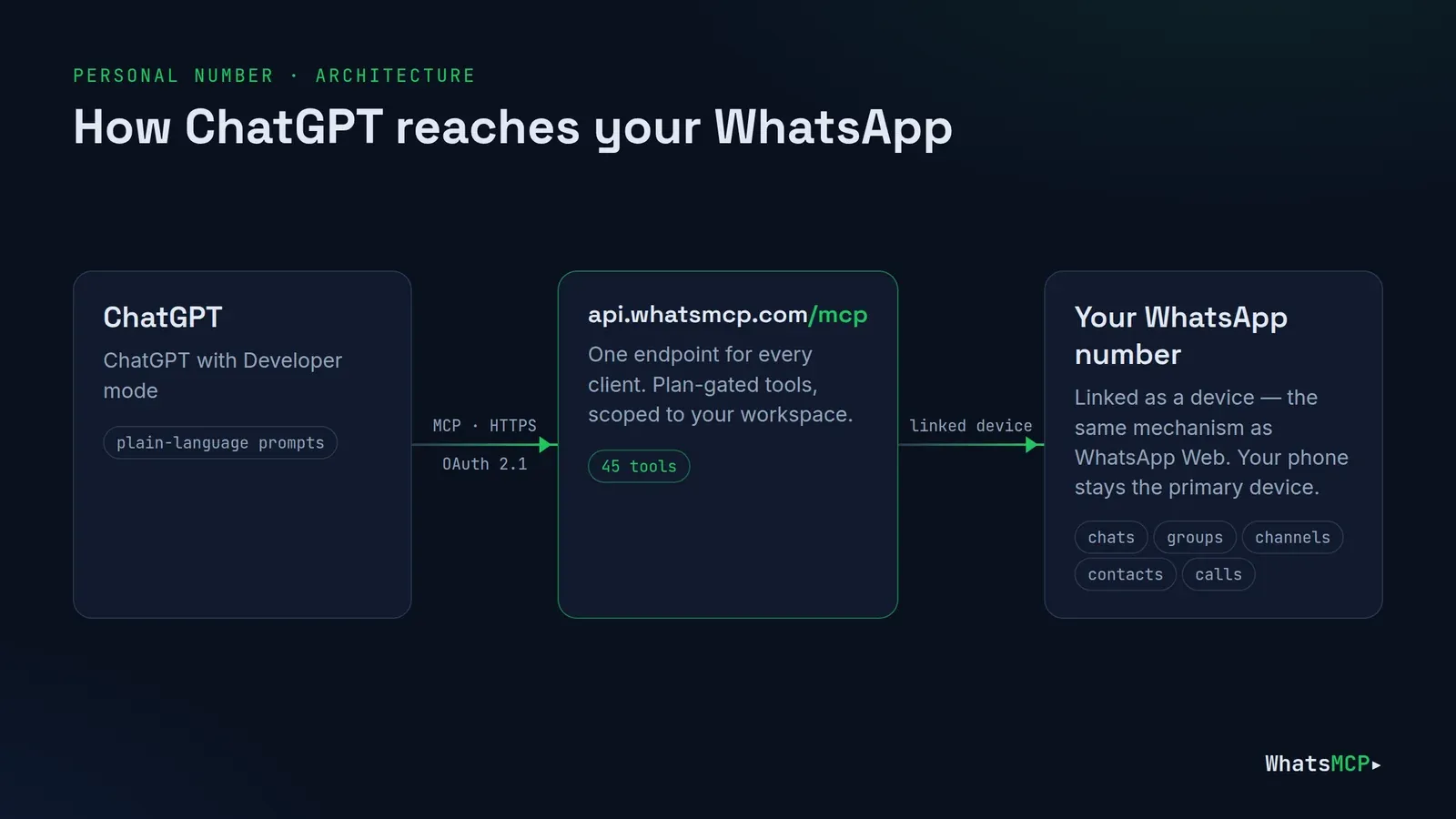
What connecting WhatsApp to ChatGPT gives you
WhatsMCP is a hosted Model Context Protocol server for WhatsApp. ChatGPT supports MCP through custom connectors, so once WhatsMCP is added, ChatGPT can call WhatsApp tools — wa_list_messages, wa_send_message, wa_create_group and dozens more — instead of you copying text back and forth.
Good fits:
- Daily catch-up — a digest of what came in, grouped by person, with what needs an answer.
- Fast replies — ChatGPT reads the thread, drafts, and sends once you confirm.
- Group admin — create a group, add people, post the plan, share the invite link.
- Lookups — who a number belongs to, what someone sent last week, missed calls.
Before you start: set up a Personal number
A Personal number connects as a linked device, the same mechanism as WhatsApp Web. Setting one up takes a couple of minutes:
- Create your workspace. Sign up free with your name and email — no card. Open the confirmation link we email you, say how you'll use WhatsApp, and choose a password. You're signed in and a short setup guide starts.
- Add the number. Setup opens Add a number (later you'll find it under Fleet → Add Number). Choose Personal WhatsApp → Link a device via QR.
- Scan the code. On your phone go to WhatsApp → Settings → Linked devices → Link a device and scan it. The page follows the pairing from Code to Scanned, Syncing and Ready. Your phone stays the primary device and can go back in your pocket.
- Plan. Your workspace's first Personal number takes its free line automatically (the Free plan: a small daily message allowance, a few days of history, no webhooks or groups — see plans). A second number links straight away but stays suspended — paired, not running — until you choose a plan for it; the console offers Choose a plan for this number right after pairing.
- Egress. A new Personal number reaches WhatsApp through WhatsMCP's Default Random VPN. Setup's Egress step — or the number's Egress page later — lets you route it through your own WireGuard tunnel or SOCKS5 proxy instead; see WhatsApp egress over SOCKS5 or WireGuard.
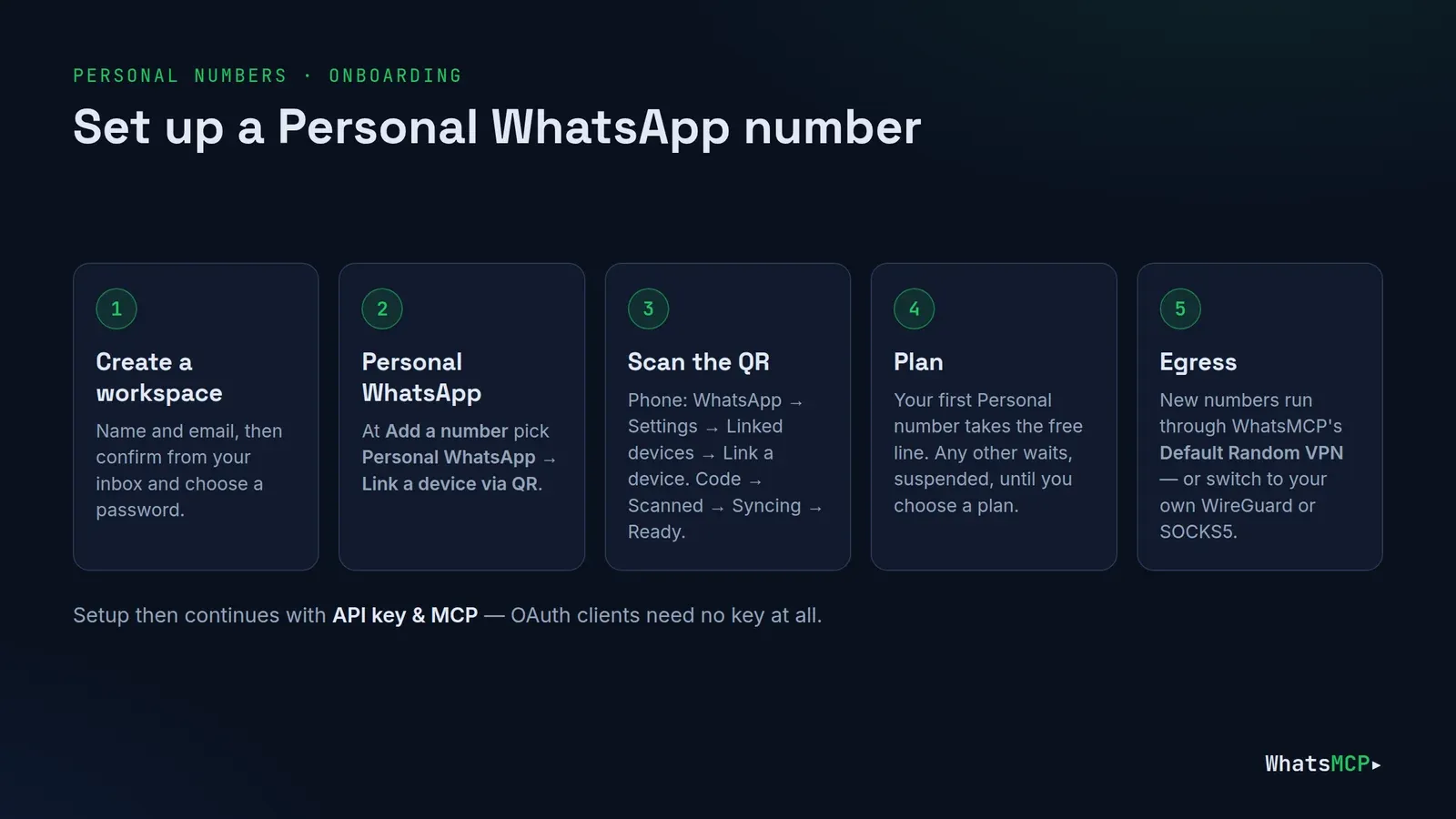
Setup also has an API key & MCP step. You only need a key for scripts and clients without OAuth sign-in — you can continue past it.
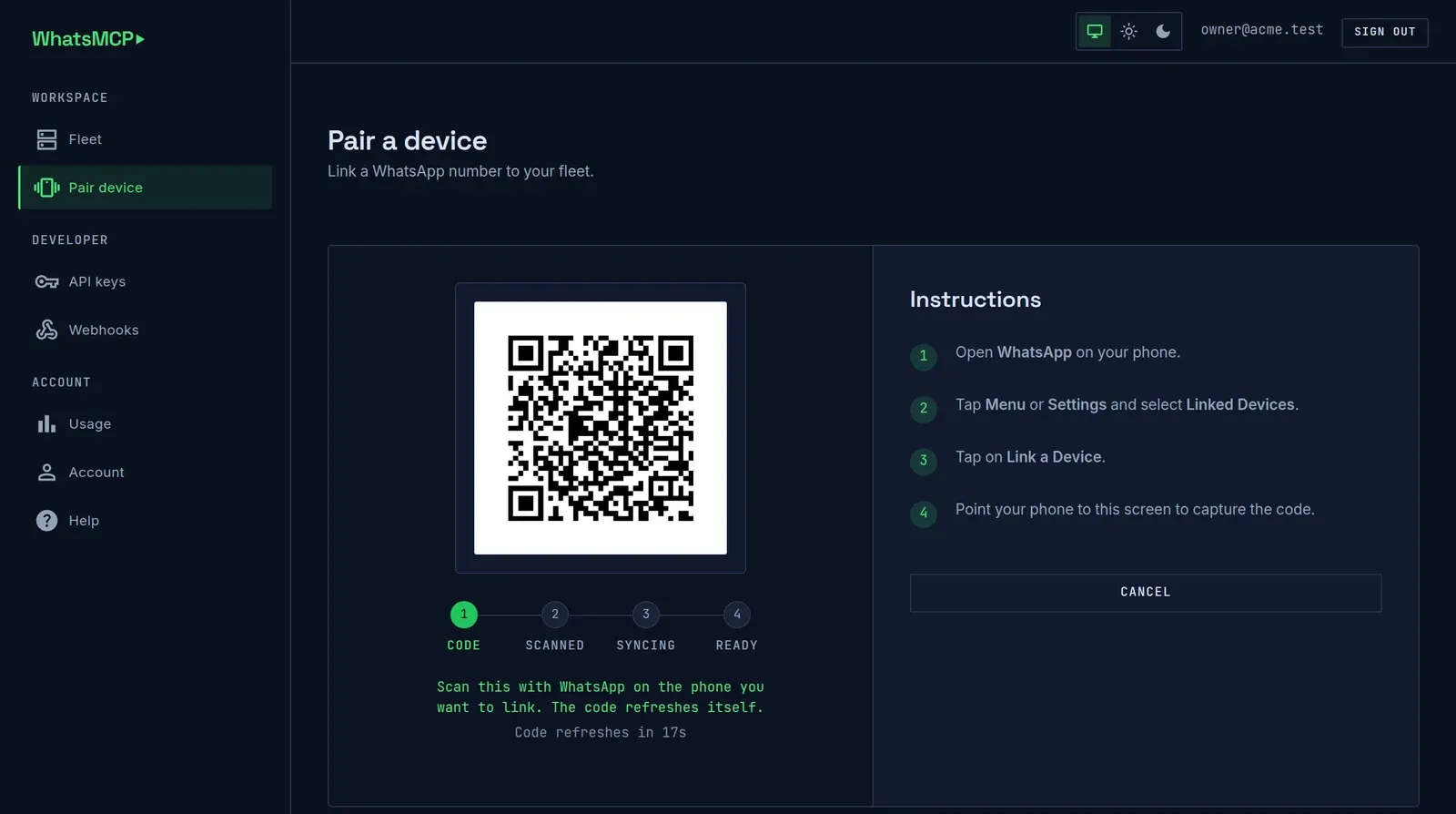
You'll also need a ChatGPT plan with Developer mode — custom MCP connectors live behind it, and whether you can turn it on depends on your ChatGPT plan (and, on a company workspace, your admin).
The endpoint every client uses is the same: https://api.whatsmcp.com/mcp. There's nothing to host and no SDK to install.
How to connect ChatGPT to WhatsApp
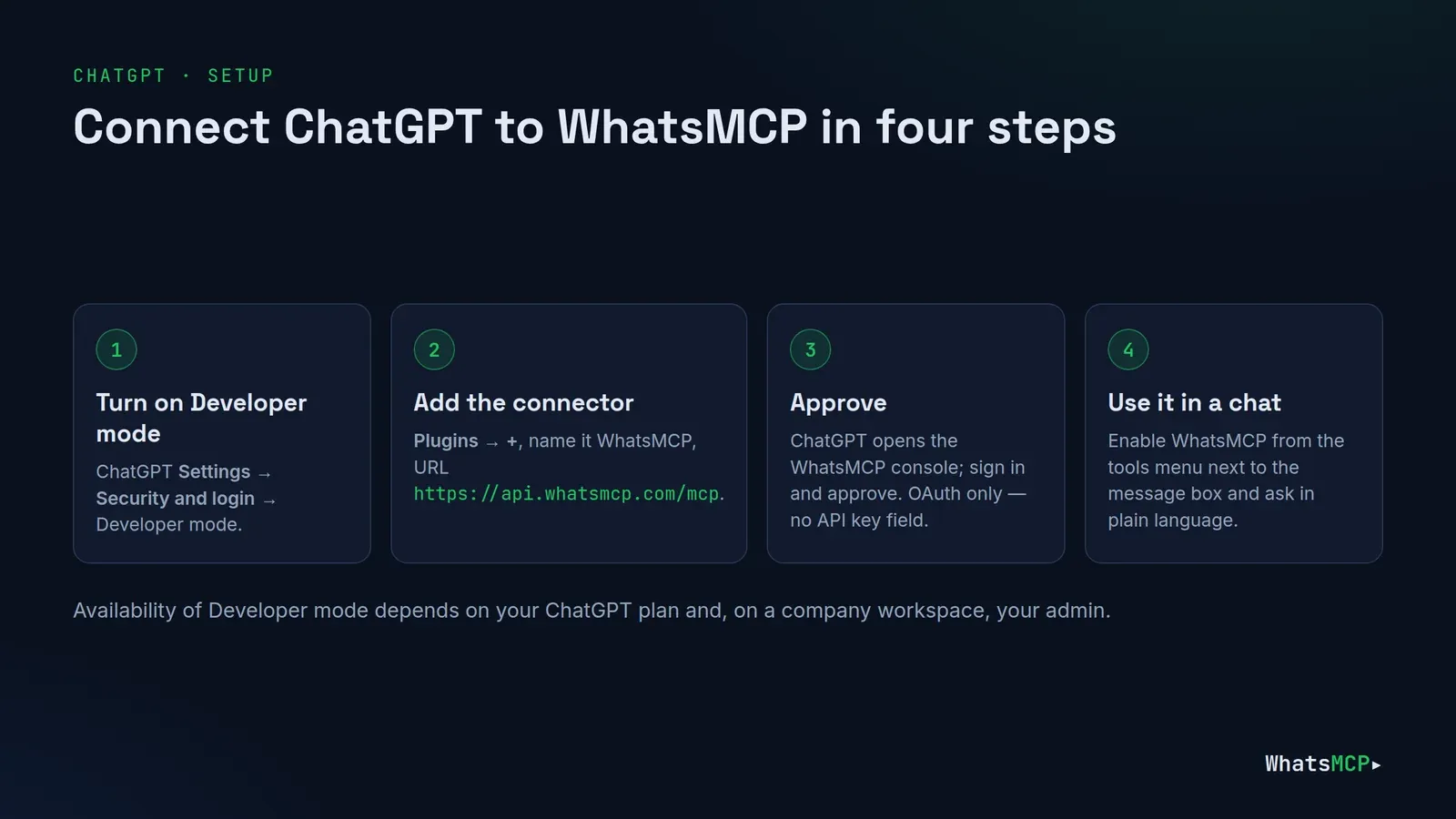
- In ChatGPT open Settings → Security and login and turn on Developer mode.
- Go to Plugins and press + to add a custom connector.
- Give it a name — WhatsMCP — and the URL
https://api.whatsmcp.com/mcp. - Save. ChatGPT discovers WhatsMCP's sign-in on its own and sends you to the WhatsMCP console to approve the connection.
Once it's connected, enable the connector in a chat (from the tools menu next to the message box) and ask away.
OAuth is the only way in here. ChatGPT's dialog has no field for a custom header, so the API-key route other clients can use doesn't apply. That's a good thing: no key ends up in a chat or a config file, and you can revoke ChatGPT on its own at Console → Connections without touching anything else.
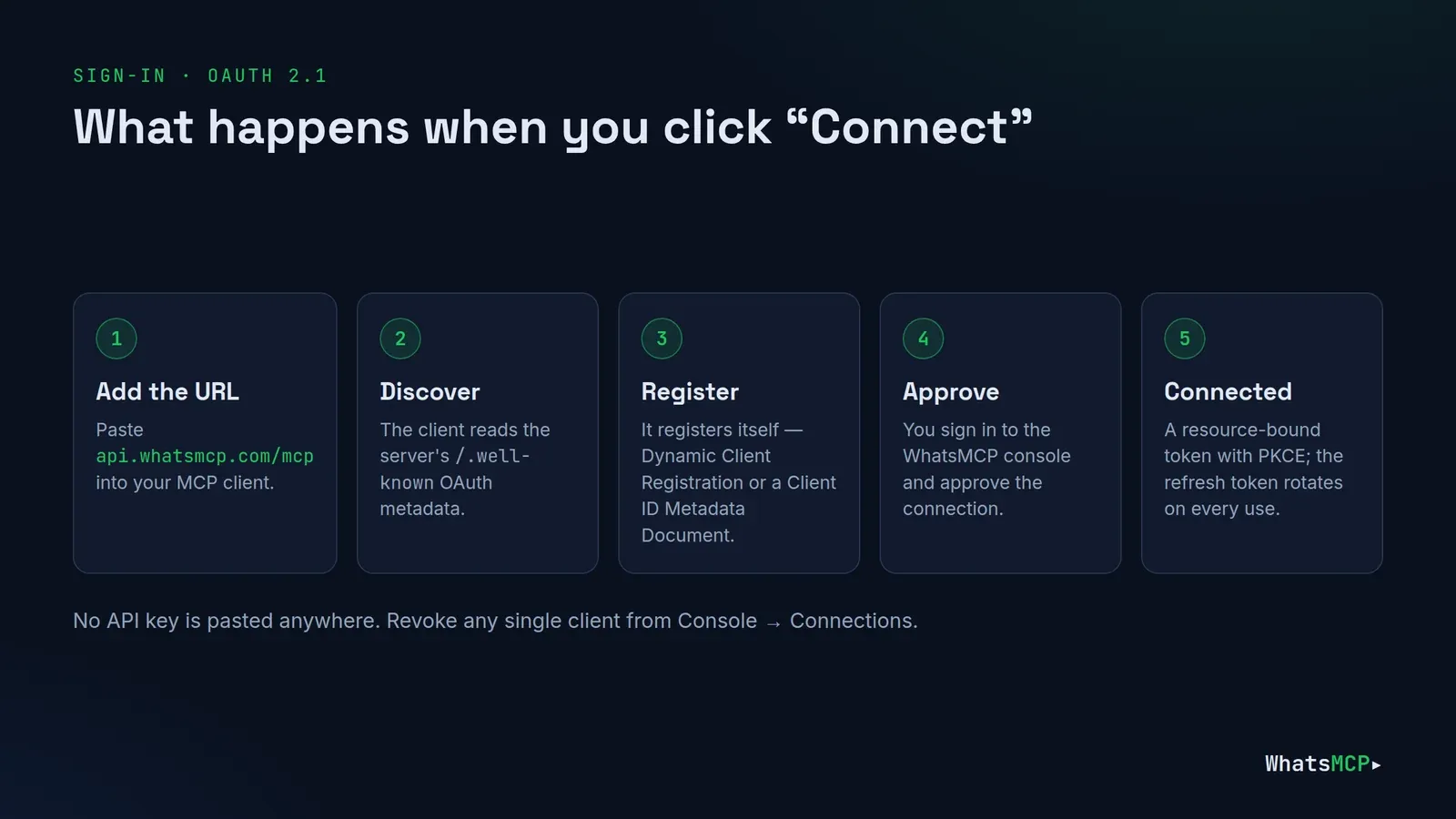
What happens when you sign in
ChatGPT reads WhatsMCP's published OAuth metadata, registers itself as a client, and opens the WhatsMCP console, where you sign in and approve. It's a standard OAuth 2.1 authorization-code flow with PKCE; the token ChatGPT receives is bound to WhatsMCP, and its refresh token rotates on every use.
What ChatGPT can do on WhatsApp
WhatsMCP exposes 45 tools across messaging, message operations, contacts and profiles, groups and channels, group administration, blocklists, calls and AI voice agents, webhooks and pairing. Which ones ChatGPT sees depends on your WhatsMCP plan — a tool your plan doesn't include is simply absent — and everything is scoped to your workspace's numbers.
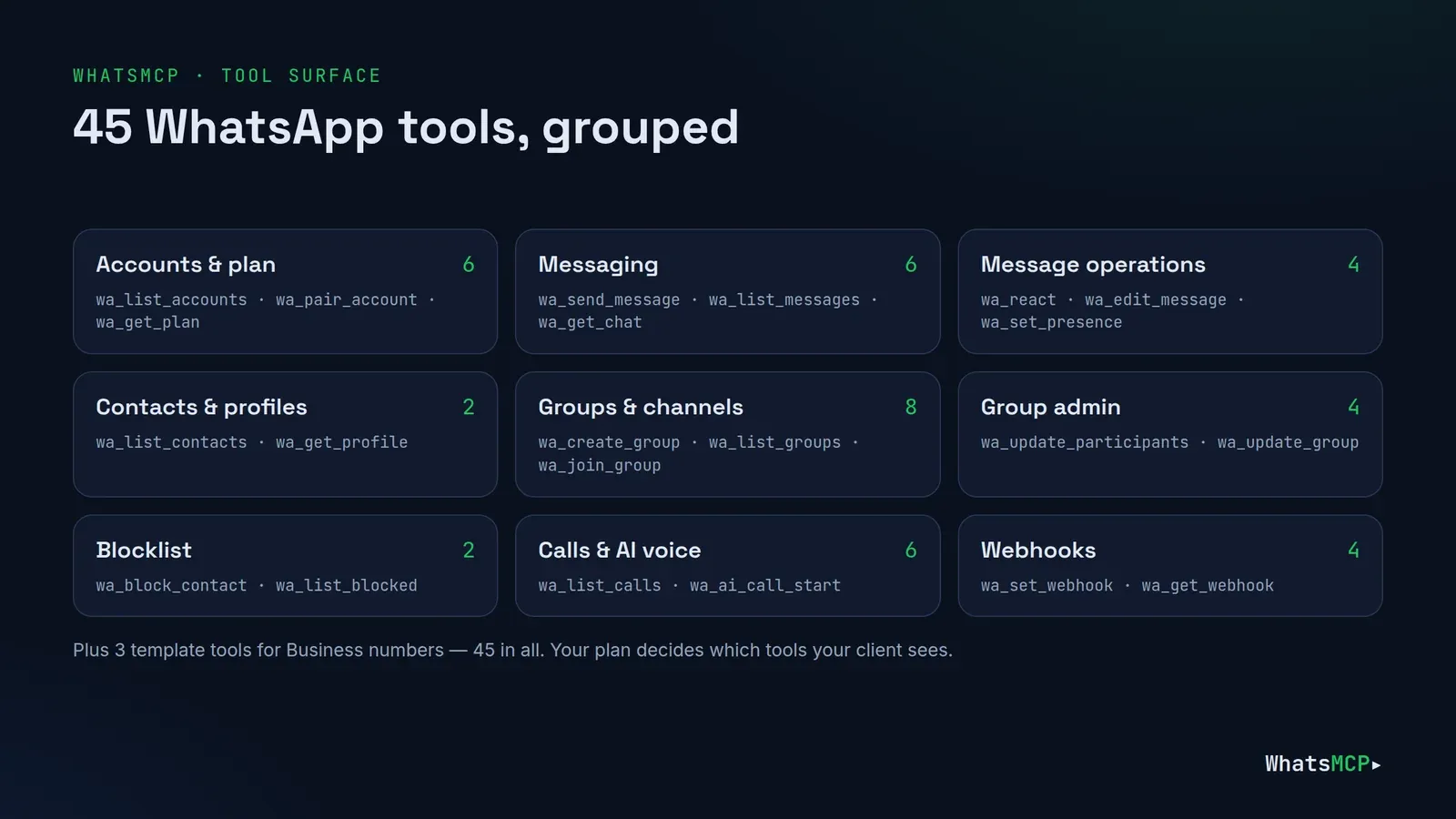
Every WhatsMCP tool is marked as read-only or not (and the destructive ones — leaving a group, removing a member — as destructive), so ChatGPT can ask you to confirm before anything changes while reads run without the extra click.
Prompts to try
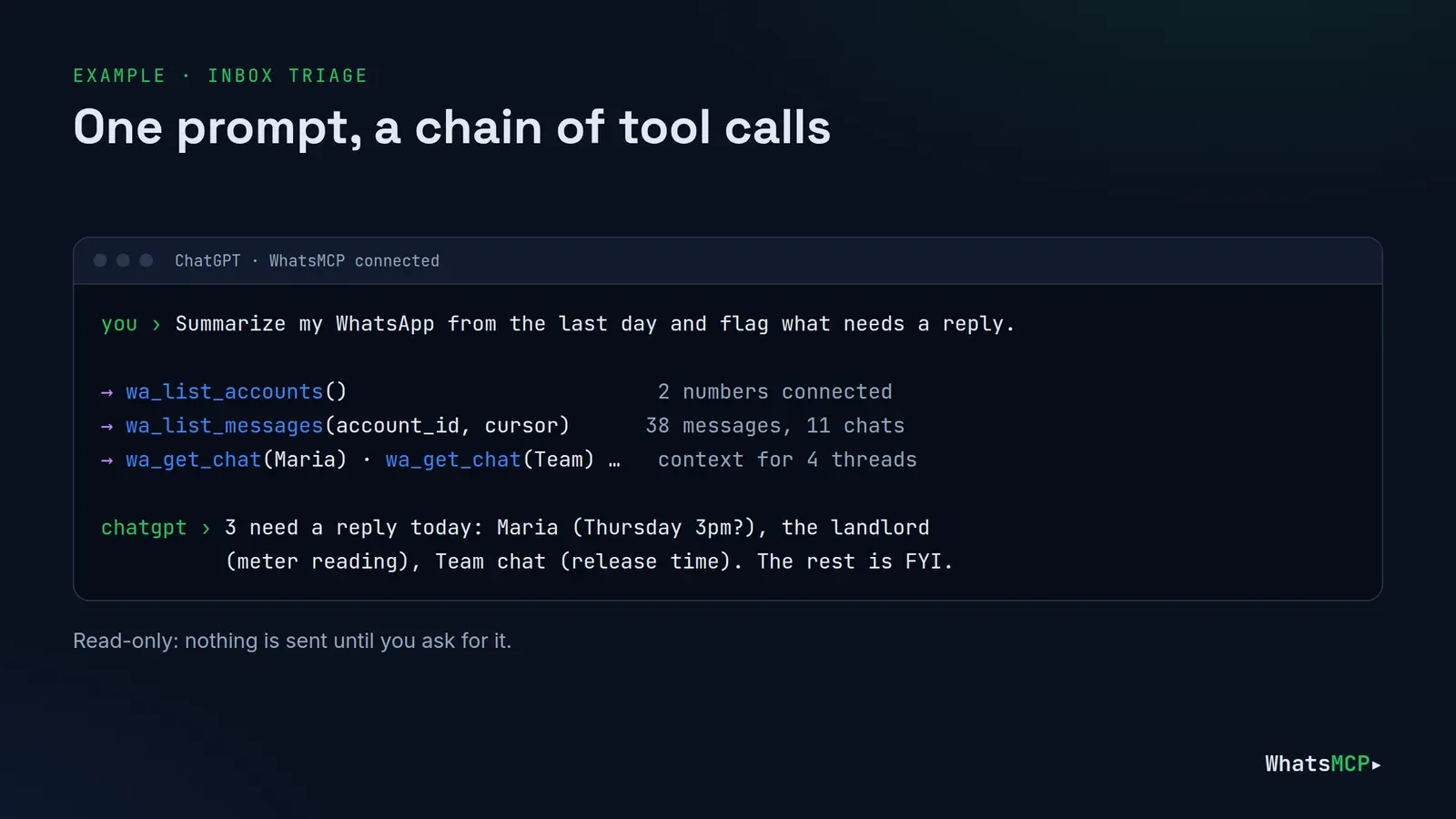
1. Catch up fast.
"What did I miss on WhatsApp since yesterday evening? Group it by person and tell me what needs an answer."
ChatGPT calls wa_list_accounts, then wa_list_messages, opens the important threads with wa_get_chat, and gives you a short digest. Read-only — a safe first prompt.
2. Answer and confirm.
"Tell Daniel I'll be 10 minutes late and send a 👍 to Anna's last message."
It finds both with wa_list_contacts, sends with wa_send_message and reacts with wa_react, asking you to confirm before it sends.
3. Organise a group.
"Make a group called 'Saturday Football' with Tom, Leo and Ravi and post: 'Kick-off 10am at the park — who's in?'"
ChatGPT creates it with wa_create_group, posts with wa_send_message, and can fetch the invite link with wa_get_group_invite_link for anyone you forgot.
4. Check a number.
"Is +44 7700 900123 on WhatsApp, and what's their public name?"
wa_get_profile asks WhatsApp directly — registration, public name, about text and, for businesses, category and hours.
5. Find that message.
"What address did Sarah send me last week?"
wa_list_messages and wa_get_chat read back through your stored history; if it's older, wa_load_history can ask your phone for more.
Troubleshooting
- No Plugins or "+" button? Developer mode isn't on, or your plan or workspace doesn't allow it.
- The connector says it's not authorised. Remove it and add it again, then complete the sign-in in the WhatsMCP console. A grant revoked at Console → Connections looks the same from ChatGPT's side.
- A tool you expected is missing. It's not in your WhatsMCP plan.
wa_get_plan— or Console → Help — shows exactly what's included. - A send was refused. Ask ChatGPT to call
wa_get_plan; it reports your limits and usage so far. - The number shows
disconnected. Your phone removed the linked device; pair it again from Fleet → Add Number → Personal WhatsApp.
Good habits
- Draft first until you trust the tone: "show me before you send".
- Use a number you can spare. A Personal number connects as a linked device, which falls outside WhatsApp's terms of service; keep traffic personal — no bulk or unsolicited messages. For customer messaging, use an official Business number.
- Revoke what you don't use at Console → Connections.
FAQ
Can I connect WhatsApp to ChatGPT without Developer mode?
Custom MCP connectors require Developer mode in ChatGPT, so you need a plan or workspace where it's available.
Do I need an API key for ChatGPT?
No. ChatGPT signs in with OAuth; there's nowhere to paste a key, and nothing to rotate.
Is my WhatsApp data shared with other users?
No. Every tool call is scoped to your WhatsMCP workspace and your linked numbers only.
Is WhatsMCP affiliated with WhatsApp or OpenAI?
No. WhatsMCP is an independent service, not affiliated with or endorsed by Meta or OpenAI.
Does the same setup work with Claude, Grok or Cursor?
Yes — it's the same endpoint. See the guides for Claude, Grok and Cursor.
Get started
Developer mode, one URL, one sign-in — and ChatGPT is on WhatsApp. Create your free WhatsMCP workspace and link a number in a minute. The complete tool reference and per-client setup are at whatsmcp.com/docs/mcp.
About WhatsMCP Engineering
Engineering Team at WhatsMCP. The team building WhatsMCP's MCP server and SIP bridge — the people who wrote the code these posts describe.