Connect WhatsApp to Cursor via MCP
Cursor's agent already reads your code, runs your tests and edits your files. Add WhatsMCP and it can reach WhatsApp too: check what a test message actually looked like on the phone, send yourself a build notification, prototype a support bot against a real number, or read customer feedback while you fix the bug it describes — without leaving the editor.
This guide shows how to connect WhatsApp to Cursor through MCP: the mcp.json setup with OAuth or an API key, where the file lives, what the agent can do once connected, developer-focused prompts, troubleshooting and FAQs.
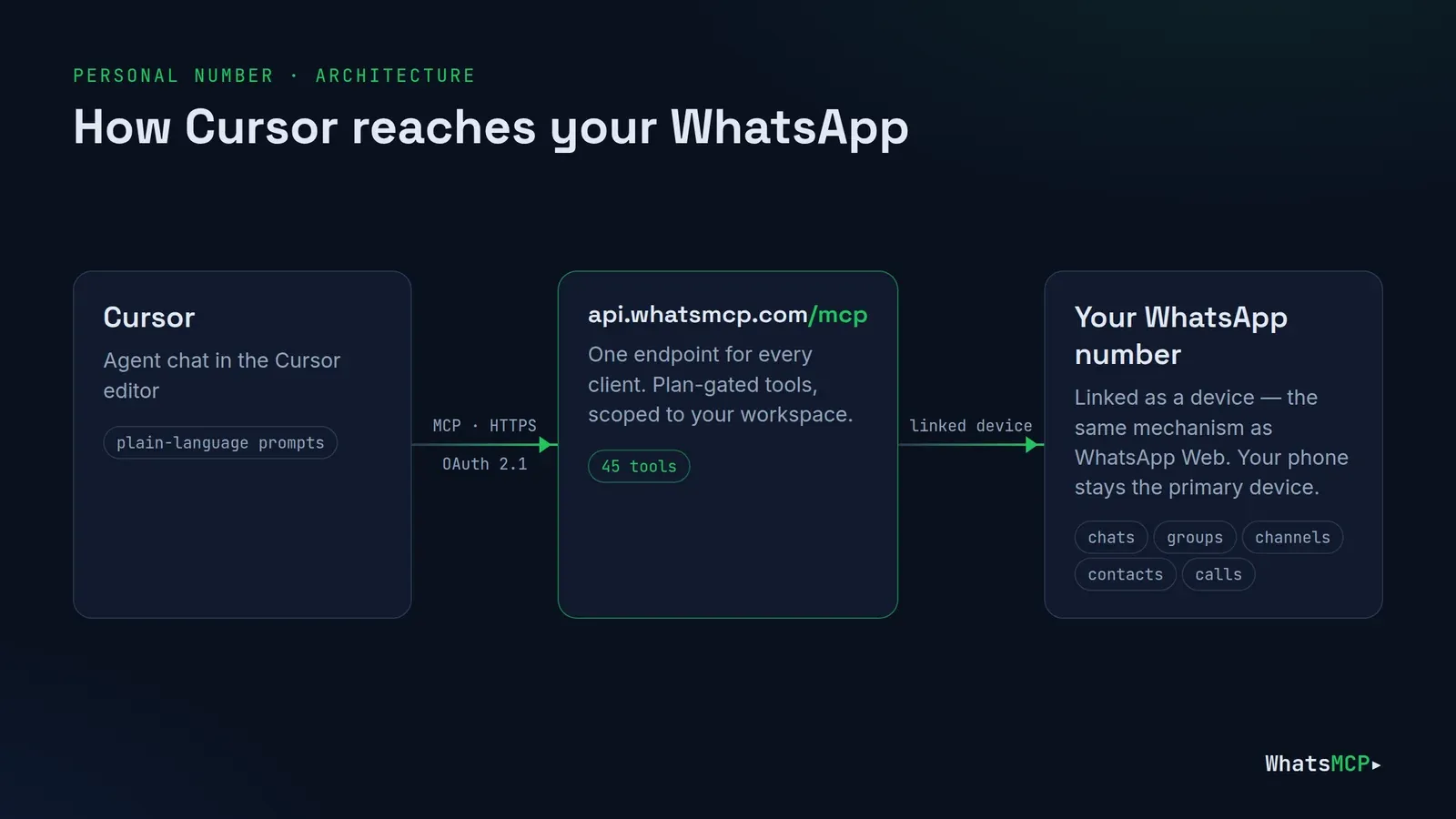
Why connect Cursor to WhatsApp
- Build WhatsApp features faster. Prototype a bot or a notification flow against a real number, and look at exactly what was sent and received.
- Debug with real data. Ask the agent to fetch the message a user complained about, then fix the code that produced it.
- Notify yourself. "Message me on WhatsApp when the migration finishes" is one prompt.
- One integration, two interfaces. What the agent does over MCP, your production code can do over the REST API or webhooks.
Before you start
- A WhatsMCP workspace. Sign up free.
- A linked number.
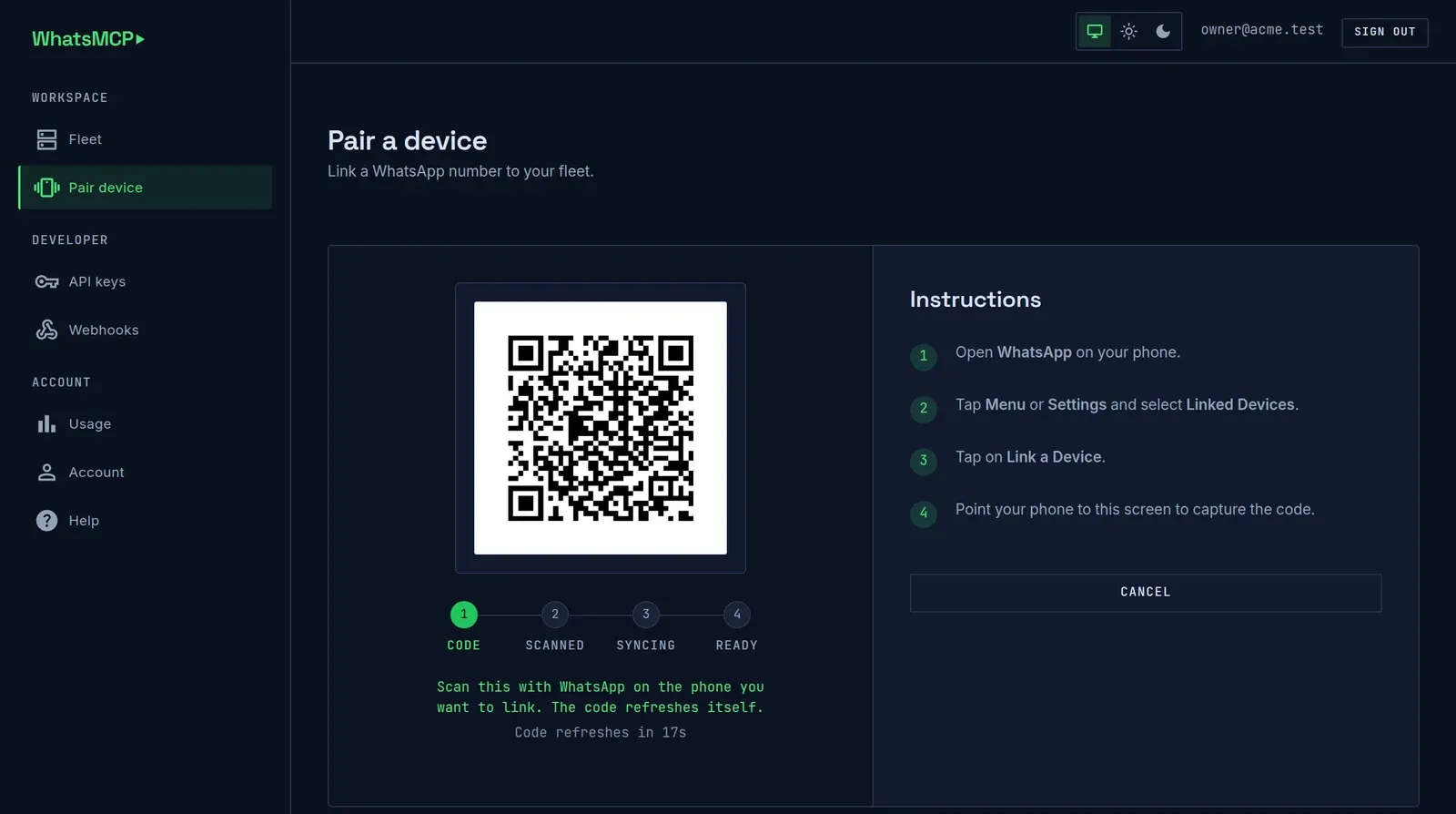
- Personal number: at Add a number (setup opens it; later it's Fleet → Add Number) choose Personal WhatsApp → Link a device via QR and scan the code from WhatsApp → Settings → Linked devices → Link a device. The first Personal number in a workspace takes the free line automatically; any other stays suspended until you choose a plan. New Personal numbers run through WhatsMCP's Default Random VPN unless you set your own WireGuard or SOCKS5 egress.
- Official Business number: choose WhatsApp Business → Connect with Facebook, then a Business plan — the number stays suspended until it has one, and your workspace's first Business plan starts with a 7-day free trial. See Connect WhatsApp Business API to Claude.
- The endpoint:
https://api.whatsmcp.com/mcp(Streamable HTTP).
How to connect Cursor to WhatsMCP
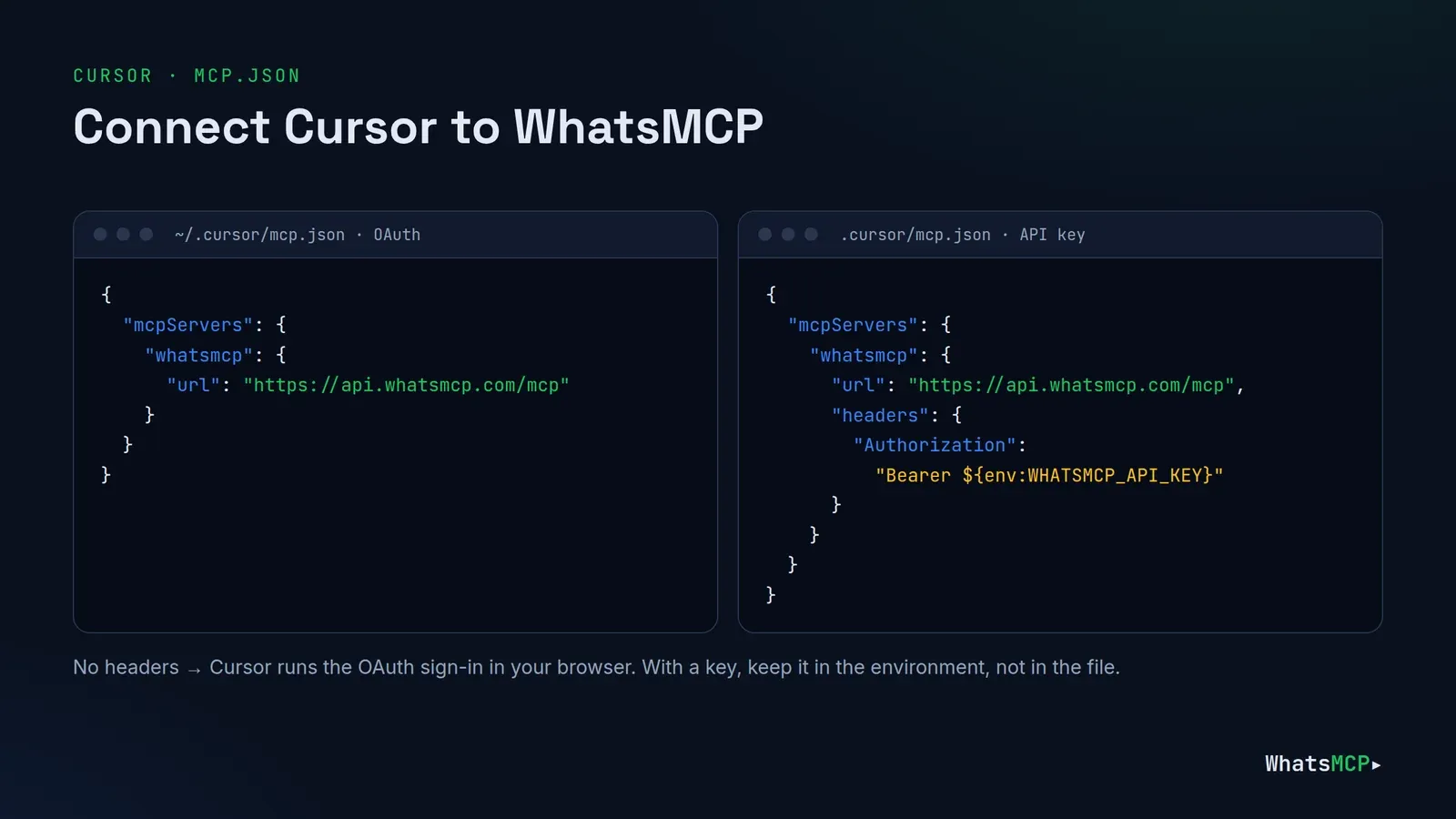
Cursor reads MCP servers from an mcp.json file:
- Global —
~/.cursor/mcp.json, available in every project. - Project —
.cursor/mcp.jsonin the repository, for one project (and shareable with your team, minus any secrets).
With OAuth (recommended)
Add the server with just its URL:
{
  "mcpServers": {
    "whatsmcp": {
      "url": "https://api.whatsmcp.com/mcp"
    }
  }
}
With no headers, Cursor runs the standard MCP OAuth flow: it discovers WhatsMCP's sign-in, registers itself, and opens your browser so you can approve the connection in the WhatsMCP console. Nothing secret is written to disk, and you can revoke Cursor on its own at Console → Connections.
With an API key
For a shared project, a remote dev box, or anywhere a browser sign-in is awkward, use a key from Console → API keys and keep it in the environment:
{
  "mcpServers": {
    "whatsmcp": {
      "url": "https://api.whatsmcp.com/mcp",
      "headers": {
        "Authorization": "Bearer ${env:WHATSMCP_API_KEY}"
      }
    }
  }
}
export WHATSMCP_API_KEY=wamcp_live_…
Cursor substitutes ${env:NAME} inside url and headers, so the key never lands in the file — safe to commit the project config. x-api-key: ${env:WHATSMCP_API_KEY} works too. Keys are shown once; mint one per machine or teammate so you can revoke individually.
Check that it's connected
Open Cursor's settings and find the MCP section, where whatsmcp should show as enabled with its tools listed. Then ask the agent: "Using WhatsMCP, list my WhatsApp accounts." It should call wa_list_accounts and show your numbers.
What happens under the hood
The OAuth flow is standard OAuth 2.1: Cursor reads WhatsMCP's published metadata, registers as a client, and completes an authorization-code exchange with PKCE. The resulting token is bound to WhatsMCP and its refresh token rotates on every use.
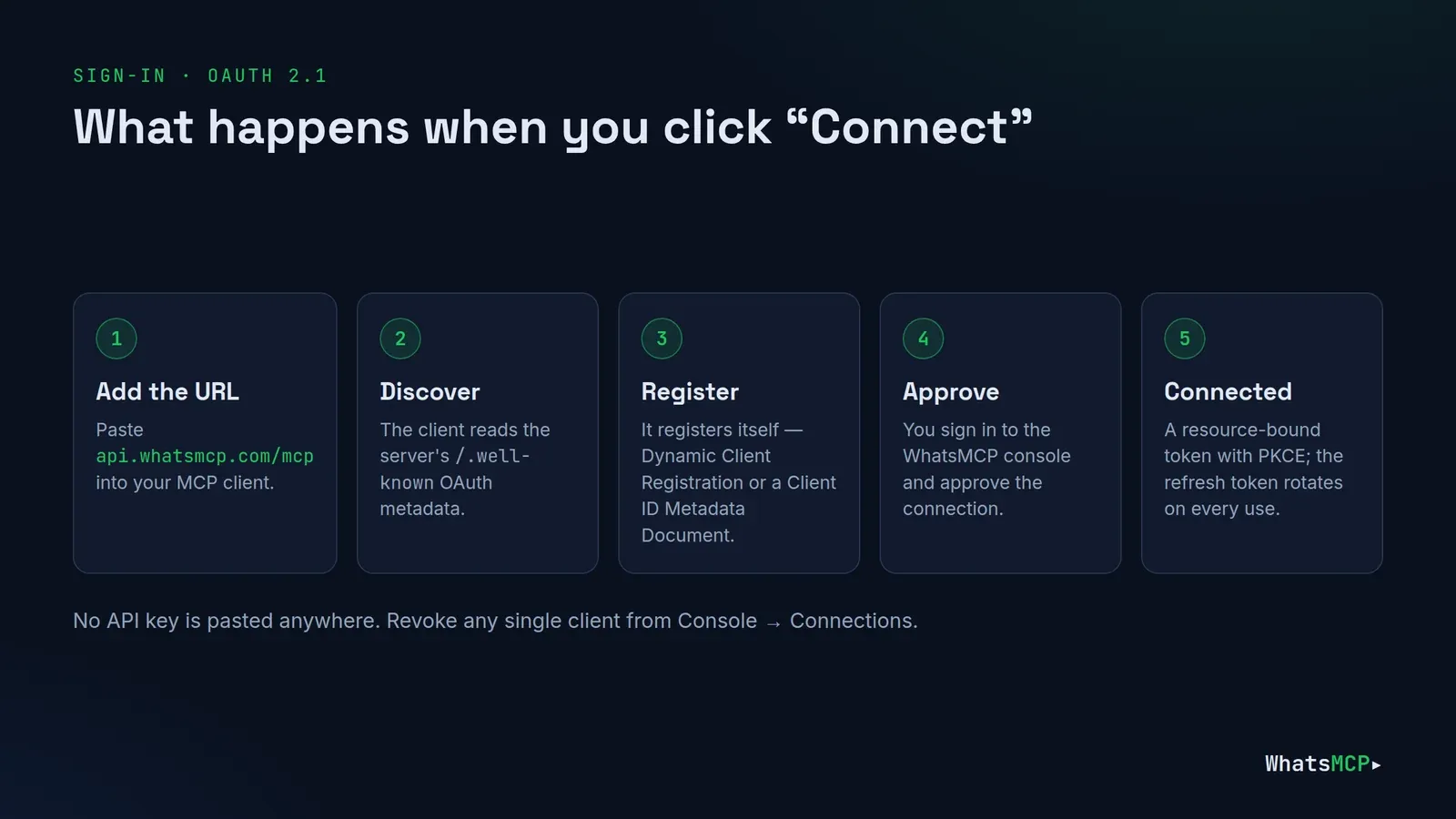
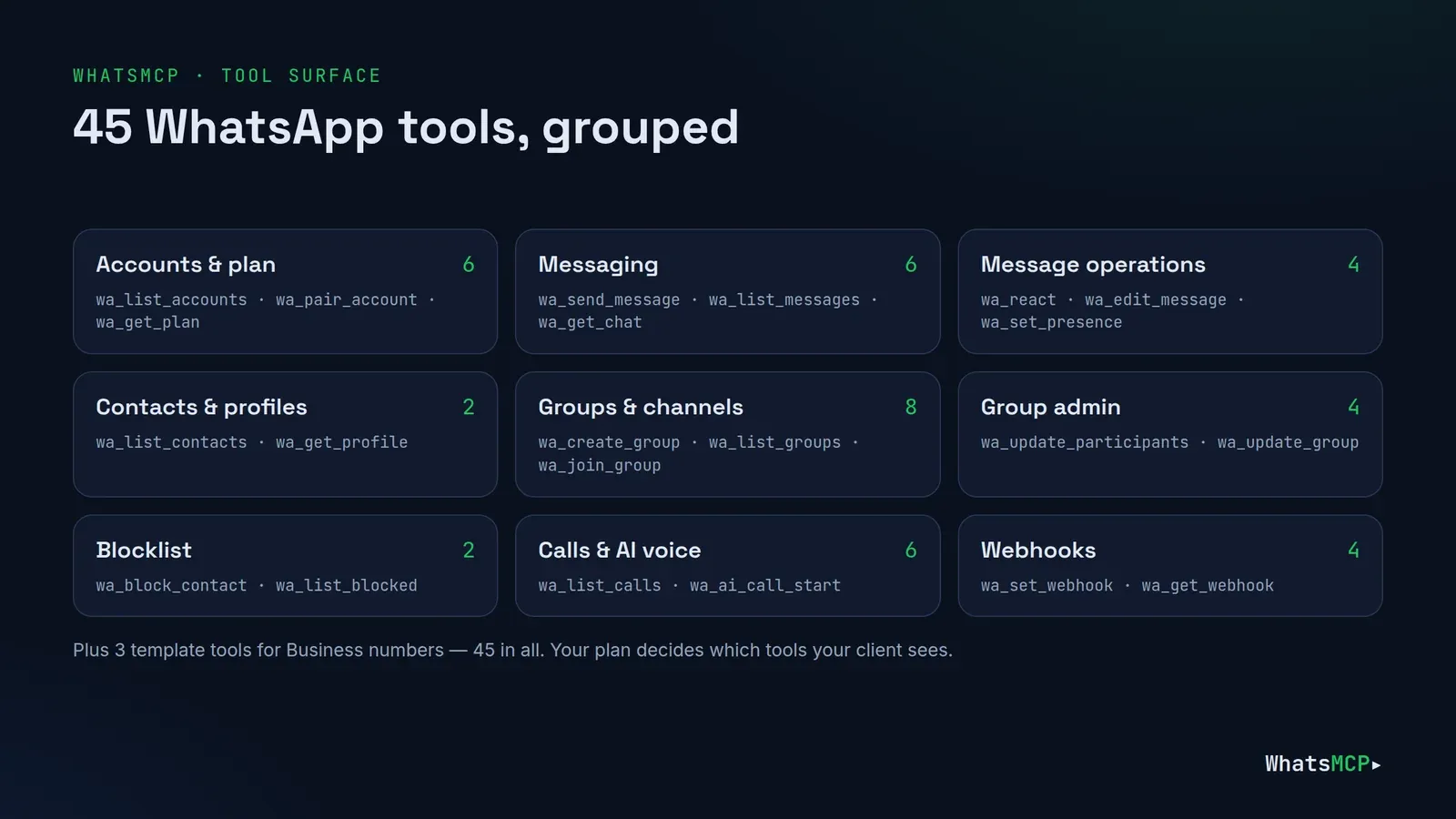
Every tool call is scoped to your workspace, and your plan decides which tools the agent sees — up to 42 on a Personal number and 15 on a Business number, out of 45 in all.
Prompts for developers
1. See what users see.
"Fetch the last five messages my test number received from +44 7700 900111 and show the raw JSON."
wa_list_messages and wa_get_message return the stored records — handy when you're writing a parser.
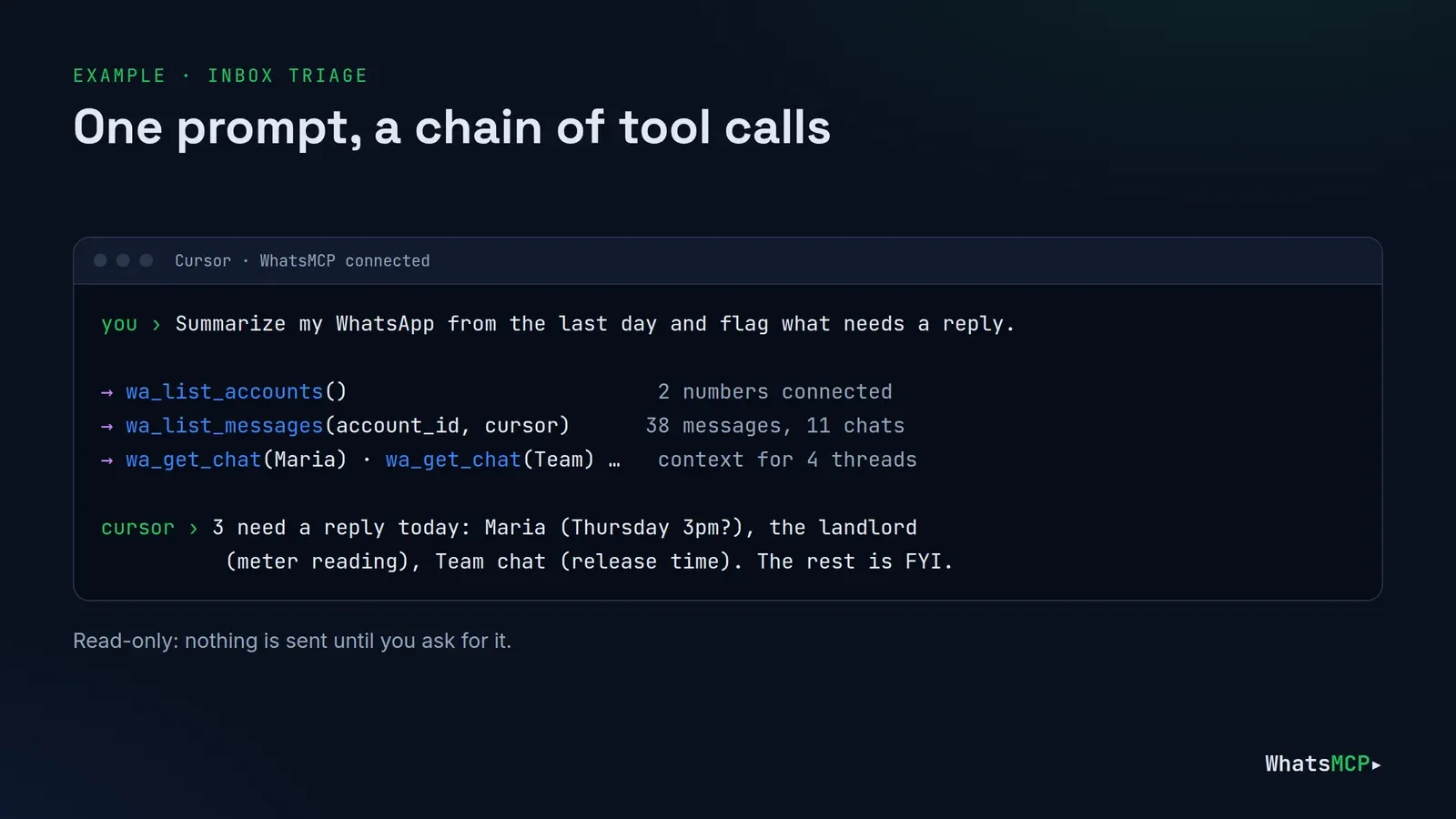
2. Notify me when it's done.
"Run the migration, and when it finishes send me a WhatsApp message with the result and how long it took."
The agent runs the command, then calls wa_send_message to your own number.
3. Prototype a webhook receiver.
"Scaffold an Express endpoint that verifies WhatsMCP's webhook signature, then register it with wa_set_webhook pointing at my ngrok URL."
wa_set_webhook returns the signing secret once; the agent can wire it into your .env. The payload format is in WhatsMCP webhooks: setup guide.
4. Turn feedback into a fix.
"Read today's messages in the 'Beta testers' group, list the bugs people reported, and open the files that are most likely responsible."
wa_list_groups and wa_get_chat read the group; the agent does the rest in your codebase.
5. Test a template (Business numbers).
"Create a utility template order_shipped with name and tracking-number variables, then send it to my test number once it's approved."
wa_create_template, wa_list_templates, then wa_send_message.
Troubleshooting
- The browser doesn't open for sign-in. Toggle the server off and on in Cursor's MCP settings, or restart Cursor. If you're on a remote machine, use the API-key config instead.
- 401 with an API key. Check the variable is exported in the environment Cursor was started from;
${env:…}resolves when Cursor launches. - A tool is missing. It's not in your plan, or it's Personal-only on a Business number.
wa_get_planand Console → Help show what's included. - Too many tools for the agent. Keep WhatsMCP enabled only in projects that need it, by putting it in the project
.cursor/mcp.jsonrather than the global file.
Good habits
- Use a test number while developing, and keep production numbers for production keys.
- Secrets in the environment, never in
mcp.json. - Personal numbers connect as linked devices, which falls outside WhatsApp's terms of service; for customer messaging, use an official Business number.
- Review access at Console → Connections and Console → API keys.
FAQ
Does Cursor support remote MCP servers with OAuth?
Yes. A url entry with no headers makes Cursor run the MCP OAuth sign-in in your browser.
Should I use the global or project config?
Global for personal use across projects; project (.cursor/mcp.json) when a repository needs WhatsApp tools, with the key read from an environment variable.
Can my production app use the same number?
Yes. Use the REST API or webhooks with their own API key; Cursor's connection is independent and revocable on its own.
Does this work with other editors and agents?
Yes — any client that speaks Streamable HTTP MCP. See the guides for Claude, ChatGPT and Grok.
Get started
Create your free WhatsMCP workspace, link a test number, and add three lines to mcp.json. The complete tool reference is at whatsmcp.com/docs/mcp.
About WhatsMCP Engineering
Engineering Team at WhatsMCP. The team building WhatsMCP's MCP server and SIP bridge — the people who wrote the code these posts describe.