Connect WhatsApp to Claude: Setup Guide
Claude is good at deciding what to say. WhatsMCP gives it a way to actually say it — on WhatsApp, from your own number. Connect the two and Claude can read your chats, look up contacts, send replies, react, manage groups and check call history through one MCP endpoint, using the same plain-language prompts you already type.
This guide walks through connecting WhatsApp to Claude Code, Claude Desktop and claude.ai, explains what happens under the hood, and finishes with prompts worth trying first, good habits and answers to common questions. It covers a Personal WhatsApp number, linked the way WhatsApp Web is. Running an official WhatsApp Business API number instead? Read Connect WhatsApp Business API to Claude.

What you get when you connect WhatsApp to Claude
WhatsMCP is a hosted Model Context Protocol server for WhatsApp. MCP is the open standard Claude uses to call outside tools, so once WhatsMCP is connected, Claude doesn't need copy-paste or screenshots to work with your messages — it calls tools such as wa_list_messages or wa_send_message directly and shows you what it did.
In practice that means you can:
- Catch up on everything that came in overnight, across every number you've linked, in one summary.
- Reply in your own voice — Claude reads the thread first, so the answer fits the conversation.
- Organise people — create groups, add or remove members, post announcements, share invite links.
- Look things up — who a number belongs to, what someone sent last week, whether you missed a call.
- Automate the boring parts — with webhooks, your own systems hear about new messages the moment they arrive.
There's nothing to host and no SDK to install. Claude talks to one URL, and WhatsMCP handles the WhatsApp side.
Before you start: set up a Personal number
A Personal number connects as a linked device, the same mechanism as WhatsApp Web. Setting one up takes a couple of minutes:
- Create your workspace. Sign up free with your name and email — no card. Open the confirmation link we email you, say how you'll use WhatsApp, and choose a password. You're signed in and a short setup guide starts.
- Add the number. Setup opens Add a number (later you'll find it under Fleet → Add Number). Choose Personal WhatsApp → Link a device via QR.
- Scan the code. On your phone go to WhatsApp → Settings → Linked devices → Link a device and scan it. The page follows the pairing from Code to Scanned, Syncing and Ready. Your phone stays the primary device and can go back in your pocket.
- Plan. Your workspace's first Personal number takes its free line automatically (the Free plan: a small daily message allowance, a few days of history, no webhooks or groups — see plans). A second number links straight away but stays suspended — paired, not running — until you choose a plan for it; the console offers Choose a plan for this number right after pairing.
- Egress. A new Personal number reaches WhatsApp through WhatsMCP's Default Random VPN. Setup's Egress step — or the number's Egress page later — lets you route it through your own WireGuard tunnel or SOCKS5 proxy instead; see WhatsApp egress over SOCKS5 or WireGuard.
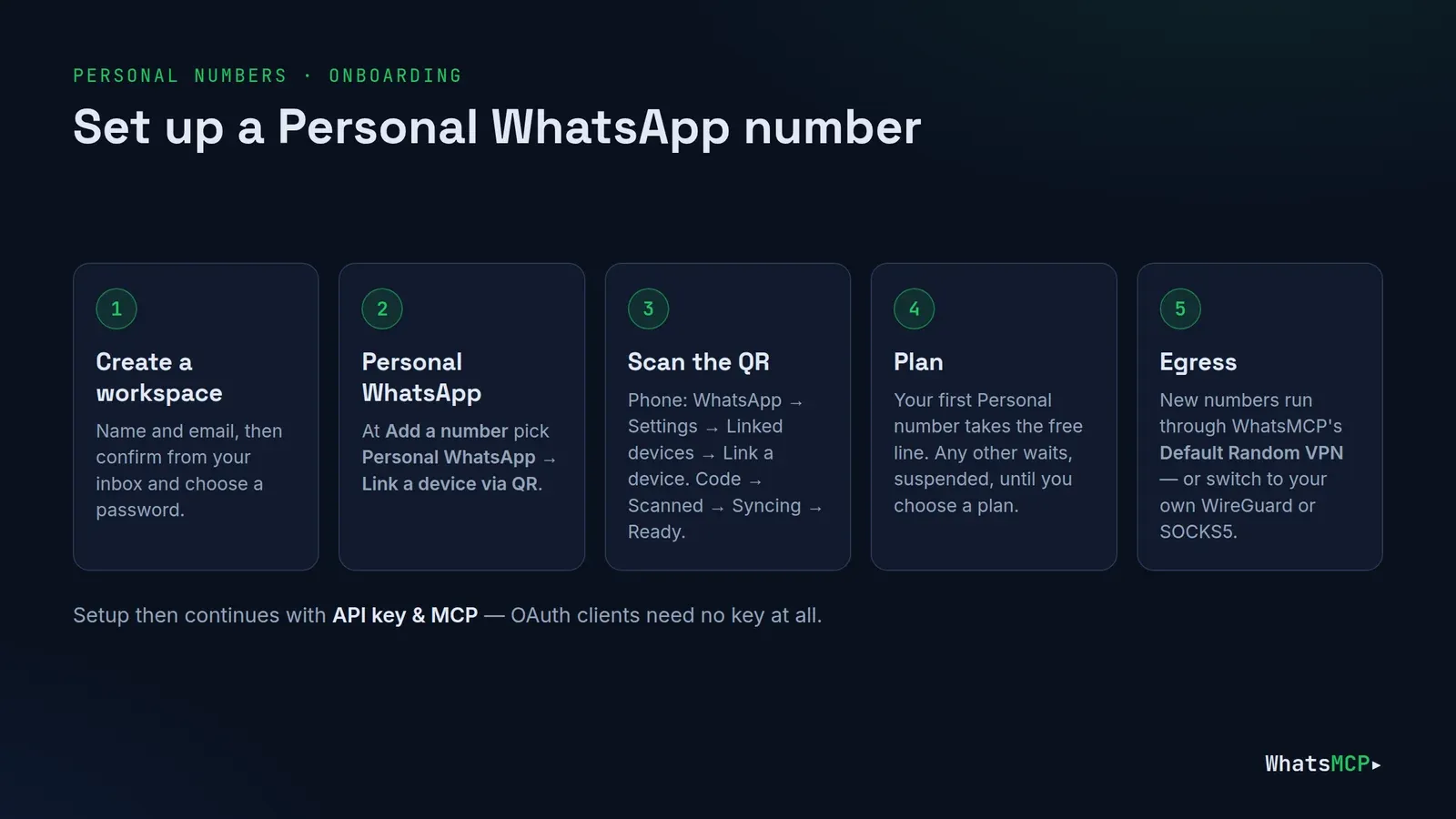
Setup also has an API key & MCP step. You only need a key for scripts and clients without OAuth sign-in — you can continue past it.
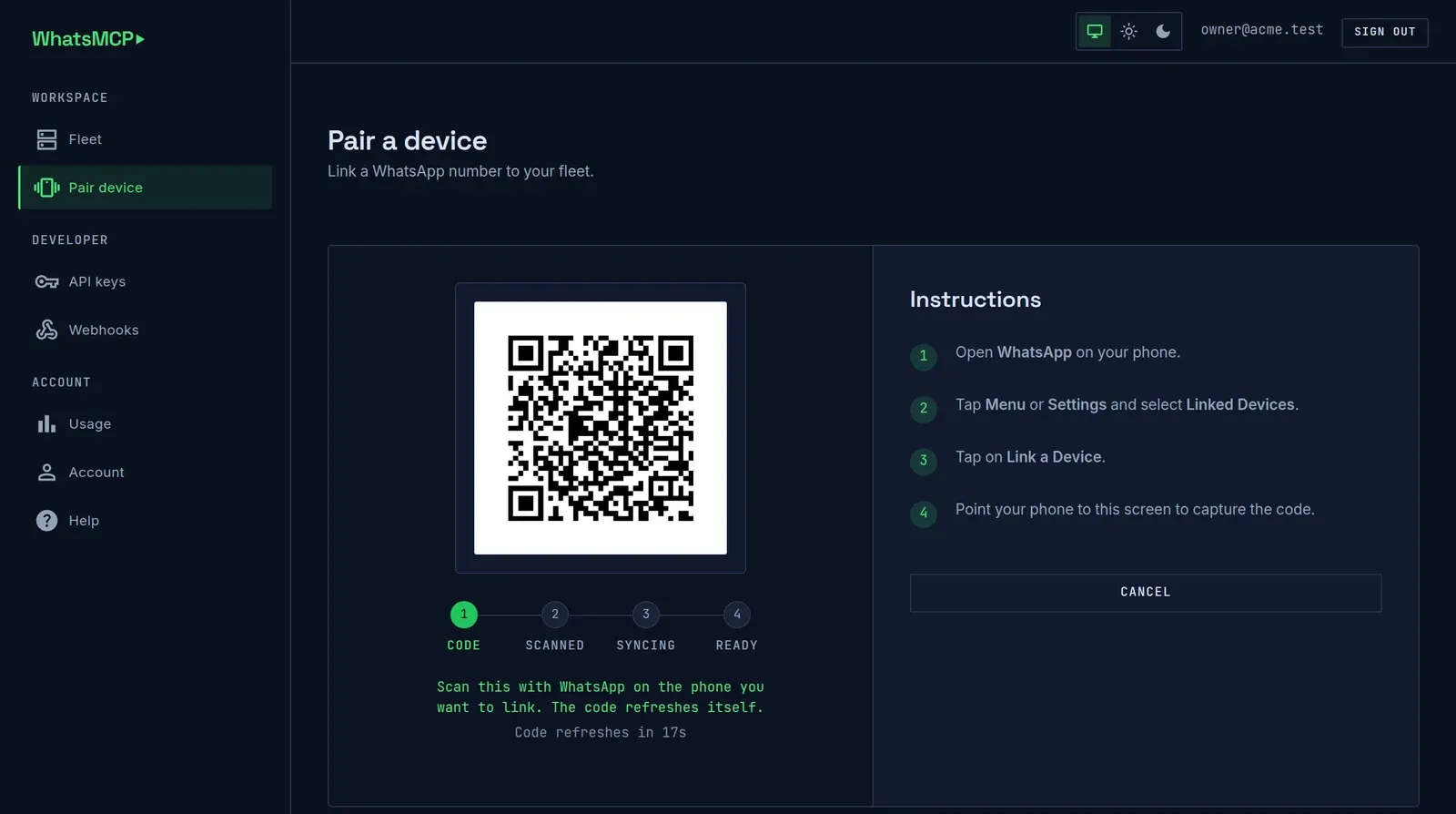
You can also link more numbers from Claude itself once it's connected: ask it to pair a new number and it calls wa_pair_account, shows you the QR code, and polls wa_pair_status until the phone confirms.
The endpoint every client uses is the same: https://api.whatsmcp.com/mcp. There's nothing to host and no SDK to install.
How to connect Claude to WhatsApp
WhatsMCP speaks MCP over Streamable HTTP, so every remote-capable Claude client can reach it. The recommended sign-in is OAuth: no key to copy, nothing stored in a config file.
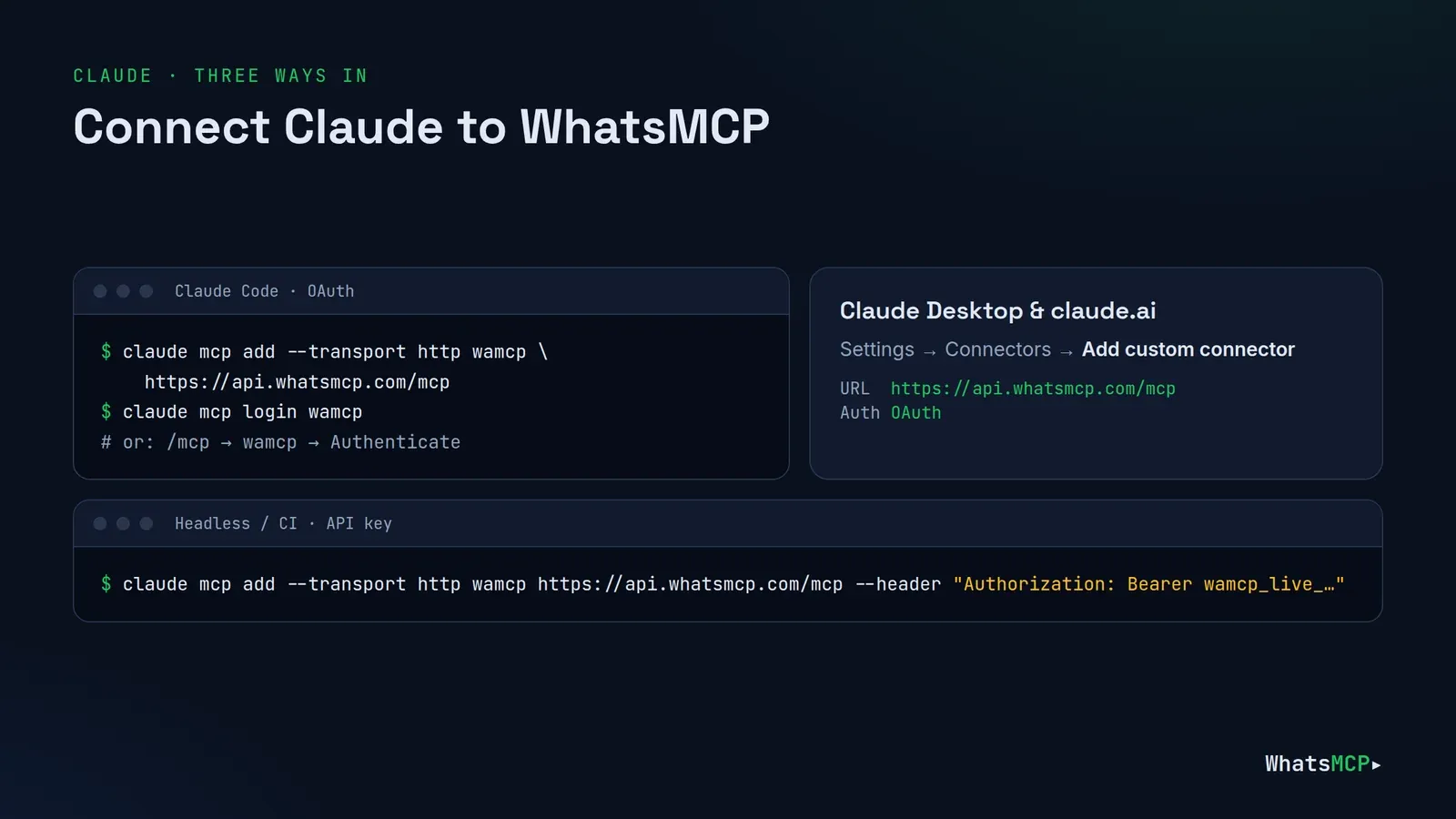
Claude Code
One command adds the server, a second signs you in:
claude mcp add --transport http wamcp https://api.whatsmcp.com/mcp
claude mcp login wamcp
A browser window opens, you approve the connection in the WhatsMCP console, and the tools appear. You can do the same from inside Claude Code: run /mcp, pick wamcp, then Authenticate. claude mcp list should then show wamcp as connected.
For CI, a script or a headless box, skip the sign-in and send an API key instead:
claude mcp add --transport http wamcp https://api.whatsmcp.com/mcp \
  --header "Authorization: Bearer YOUR_KEY"
Claude Desktop and claude.ai
Add WhatsMCP as a custom connector:
- Open Settings → Connectors → Add custom connector.
- Enter the URL
https://api.whatsmcp.com/mcp. - Leave Authentication on OAuth.
- Save, then Connect and sign in when Claude asks.
Prefer a key? Set Authentication to None and add a request header named x-api-key whose value is your key, pasted on its own — no Bearer in front. (Authorization isn't offered in that dialog; Claude keeps it for the OAuth token it manages.)
One gotcha. A claude.ai connector keeps the authentication type it was created with. If you first added WhatsMCP with a key and later want OAuth, it won't switch on its own — delete the connector and add it again against the same URL.
Editing the config file instead
If you manage Claude Desktop through its configuration file, the same server looks like this, and the file has no restriction on which header you use:
{
  "mcpServers": {
    "wamcp": {
      "type": "http",
      "url": "https://api.whatsmcp.com/mcp",
      "headers": { "Authorization": "Bearer YOUR_KEY" }
    }
  }
}
Getting an API key
Only needed for the key route. Open Console → API keys → Create key. Keys look like wamcp_live_… and are shown exactly once — we store only a hash, so a lost key is replaced, never recovered. Mint one per client or environment so you can revoke them one at a time. The key is the workspace: there's no tenant argument to pass and no way for one workspace to reach another's messages.
What happens under the hood
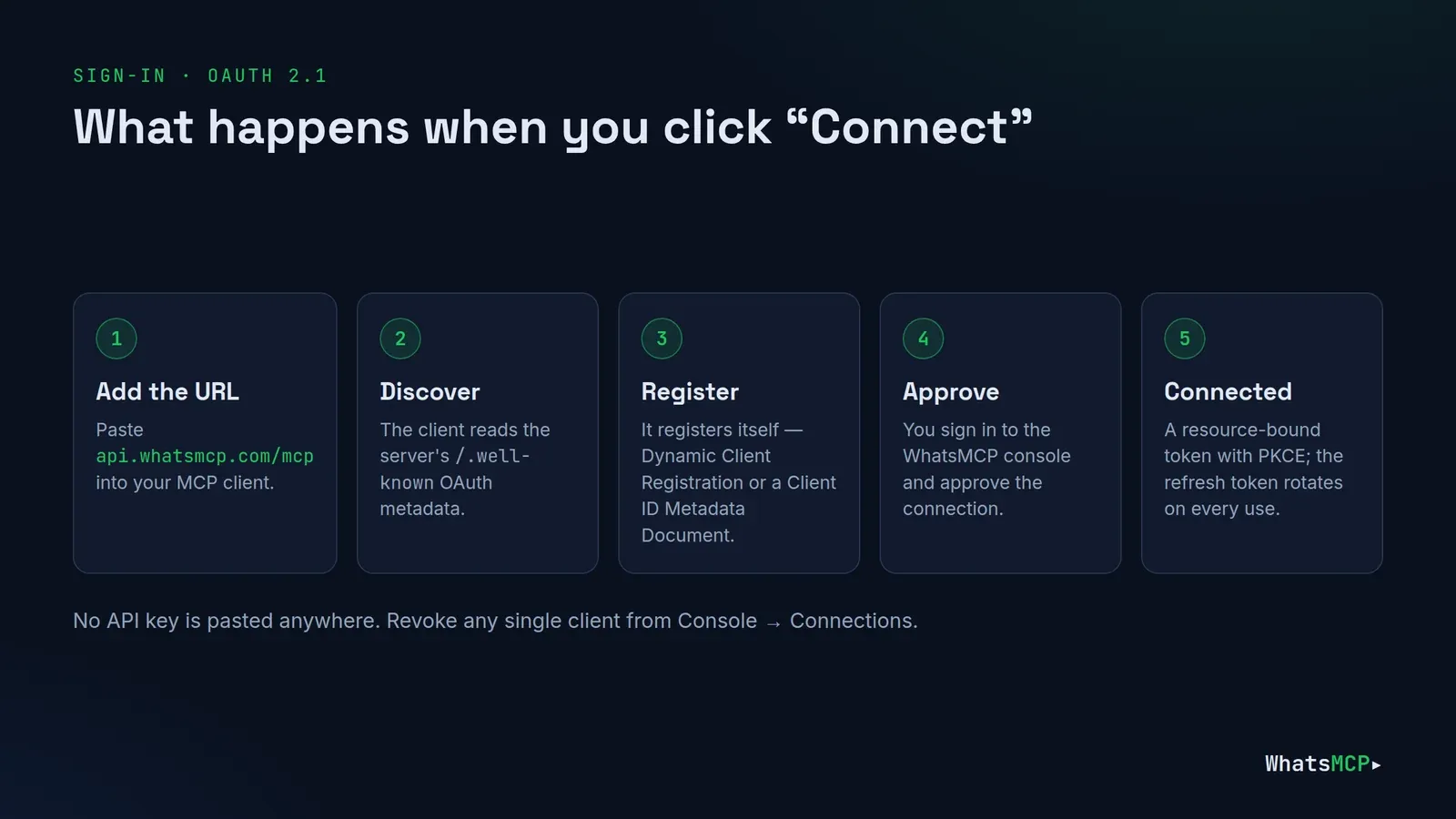
When you connect over OAuth, Claude reads WhatsMCP's published metadata, registers itself (Dynamic Client Registration or a Client ID Metadata Document), and sends you to the console to approve it. It's a standard OAuth 2.1 authorization-code flow with PKCE. The token Claude receives is bound to the WhatsMCP resource, and its refresh token rotates on every use — a replayed old token revokes the whole grant instead of issuing a new one.
Either way — OAuth or key — you land on the same surface: 46 tools covering messaging, message operations, contacts and profiles, groups and channels, group administration, blocklists, calls and AI voice agents, webhooks and pairing.

Which ones Claude sees depends on your plan — a tool your plan doesn't include is simply absent, not present-and-refusing. wa_get_plan shows where you stand at any time, and Console → Help lists exactly which tools your workspace gets.
Prompts to try first
You drive everything in plain language; Claude picks the tools. Start read-only, then let it act.
1. Morning inbox triage.
"Summarize my WhatsApp messages from the last day across all my numbers, and flag anything that looks urgent or needs a reply today."
Claude starts with wa_list_accounts, reads with wa_list_messages, opens the threads that matter with wa_get_chat, and hands you a ranked digest. Nothing is sent, so it's a safe first test.

2. Reply in your own voice.
"Reply to Maria confirming Thursday at 3pm works, keep it warm and short, and react 👍 to her last message."
It finds the contact with wa_list_contacts, checks the thread with wa_get_chat for tone, sends with wa_send_message and reacts with wa_react. Ask it to draft first and show you before sending while you're getting comfortable.
3. Spin up a group and announce.
"Create a WhatsApp group called 'Launch War Room' with Alex, Priya and Sam, post the kickoff time — Friday 9am — and give me the invite link."
Claude creates the group with wa_create_group, posts with wa_send_message, and returns the link from wa_get_group_invite_link.
4. Who is this number?
"Someone called +44 7700 900123 twice yesterday. Who is it on WhatsApp, and have they messaged me before?"
wa_list_calls finds the calls, wa_get_profile asks WhatsApp for the public name, about text and — for a business — its category and hours, and wa_list_messages checks your history with them.
5. Fix a typo, quietly.
"I just told the family group dinner is at 8 — it's 7. Edit that message."
wa_edit_message changes a message you sent. WhatsApp accepts edits for about 20 minutes, so for older ones Claude will suggest a follow-up instead.
6. Send a file.
"Send the PDF invoice I just shared to Tom with a one-line note."
wa_send_message sends text, images, documents and audio. When someone sends you a file, wa_get_media downloads it so Claude can read it.
Going further: webhooks and automation
Prompts are great when you're at the keyboard. For everything else, register a webhook with wa_set_webhook (on paid plans) and WhatsMCP pushes each inbound message to your HTTPS endpoint as it arrives, signed so you can verify it came from us. Your own code — or an agent you run — can then decide what to do and reply through the same tools. The full walkthrough is in WhatsMCP webhooks: setup guide.
If you'd rather poll, wa_list_messages returns messages oldest first with a cursor, so an agent can pick up exactly where it left off without missing or repeating anything.
Good habits
- Draft before send at first. "Show me the reply first" keeps a human in the loop.
- Start with a number you can spare. A Personal number connects as a linked device, which falls outside WhatsApp's terms of service, and WhatsApp may restrict a number it sees as misused. Keep traffic personal — no bulk or unsolicited messages. For customer messaging, use an official Business number.
- Review connections. Every client you signed in with OAuth is listed at Console → Connections, with a revoke button each; keys live at Console → API keys.
- Watch your plan.
wa_get_planreports limits and usage, and is the first thing to call when a send is refused.
Troubleshooting
- Claude says the server needs authentication. Run
claude mcp login wamcp(Claude Code) or press Connect on the connector (Desktop and claude.ai). - A key-based connector won't connect. Header values are stored once and never shown again, so replace the header rather than trying to read it back — a wrong key and a missing one look identical from outside.
- An account shows
disconnectedorlogged_out. The phone removed the linked device or has been offline for a long time. Pair it again from Fleet → Add Number → Personal WhatsApp. - A tool you expected is missing. It isn't in your plan; Console → Help shows what's included, and the plans page shows what each tier adds.
FAQ
Is WhatsMCP an official WhatsApp integration?
No. WhatsMCP is an independent service, not affiliated with or endorsed by Meta. Personal numbers connect as linked devices; Business numbers connect through Meta's official WhatsApp Cloud API.
Does my phone need to stay online?
Your phone stays the primary device, just as with WhatsApp Web. Day-to-day messaging works through the linked device; loading older history on demand (wa_load_history) needs the phone online.
Can Claude use more than one WhatsApp number?
Yes. Plans are per number: your first Personal number takes the free line, and each further number gets a plan of its own. You can even mix Personal and Business numbers in one workspace. wa_list_accounts lists them all and every tool takes an account_id.
Do I need an API key?
Not for Claude Code, Claude Desktop or claude.ai — OAuth sign-in is the whole setup. Keys are for scripts, CI and clients that can't do OAuth.
Does the same setup work in other AI clients?
Yes — the endpoint is the same everywhere. See the guides for ChatGPT, Grok and Cursor.
Get started
Two commands, or four clicks, and Claude is on WhatsApp. Create your free WhatsMCP workspace, link a number, and paste one URL. Full per-client instructions and the complete tool reference are at whatsmcp.com/docs/mcp.
About WhatsMCP Engineering
Engineering Team at WhatsMCP. The team building WhatsMCP's MCP server and SIP bridge — the people who wrote the code these posts describe.