Connect WhatsApp to Codex: Setup Guide
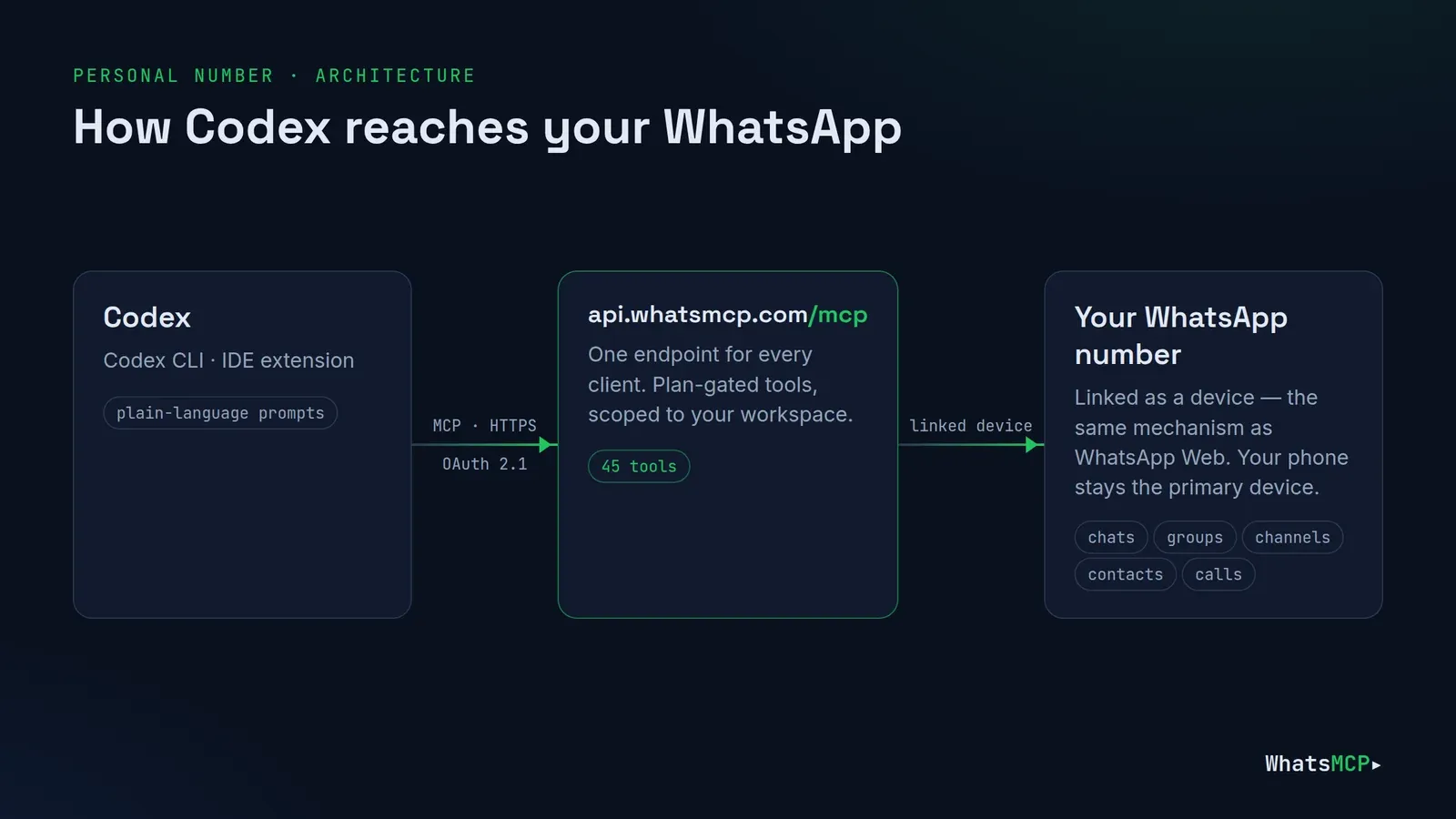
OpenAI's Codex already works in your terminal and editor: it reads the repository, runs commands and writes code. Connect WhatsMCP and Codex can reach WhatsApp too — read the message a user complained about, send yourself a note when a long job finishes, or prototype a support bot against a real number without leaving the session.
This guide shows how to connect WhatsApp to Codex — the CLI and the IDE extension — over MCP, with OAuth sign-in or an API key kept in an environment variable. It covers the config.toml setup, what Codex can do once connected, developer-focused prompts, troubleshooting and FAQs.
Why connect Codex to WhatsApp
- Debug with real messages. Fetch the exact message that broke your parser and fix the code in the same session.
- Get notified. "Run the test suite and WhatsApp me the result" is one prompt.
- Prototype WhatsApp features. Build and test a webhook receiver, a bot or a template flow against a real number.
- Same integration in production. What Codex does over MCP, your app can do over the REST API and webhooks.
Before you start
- A WhatsMCP workspace. Sign up free.
- A linked number.
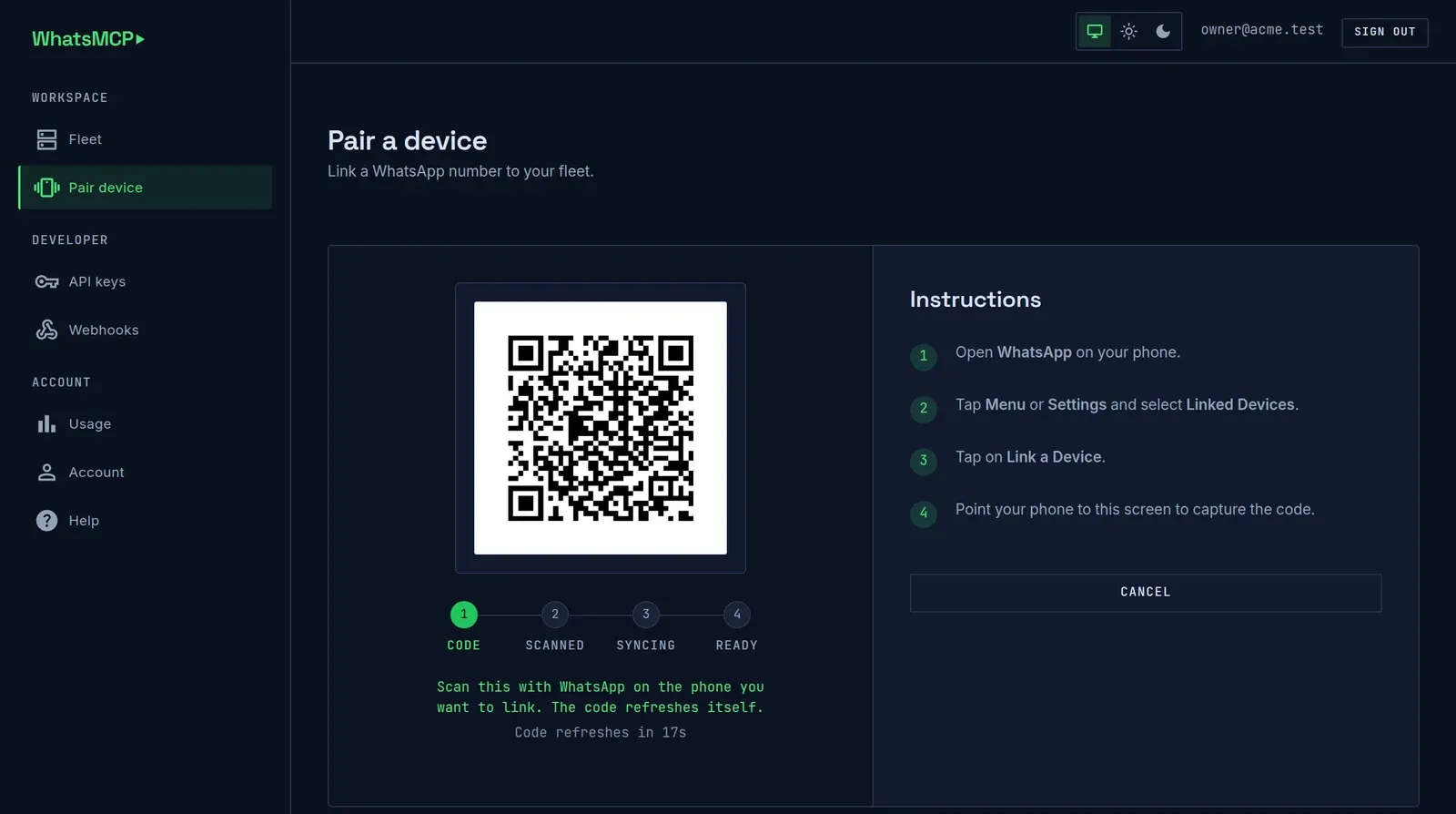
- Personal number: at Add a number (setup opens it; later it's Fleet → Add Number) choose Personal WhatsApp → Link a device via QR and scan the code from WhatsApp → Settings → Linked devices → Link a device. The first Personal number in a workspace takes the free line automatically; any other stays suspended until you choose a plan. New Personal numbers run through WhatsMCP's Default Random VPN unless you set your own WireGuard or SOCKS5 egress.
- Official Business number: choose WhatsApp Business → Connect with Facebook, then a Business plan — the number stays suspended until it has one, and your workspace's first Business plan starts with a 7-day free trial. Not sure which? Read Personal WhatsApp vs WhatsApp Business API.
- Codex — the CLI or the IDE extension.
- The endpoint:
https://api.whatsmcp.com/mcp(Streamable HTTP).
How to connect Codex to WhatsMCP
With OAuth (recommended)
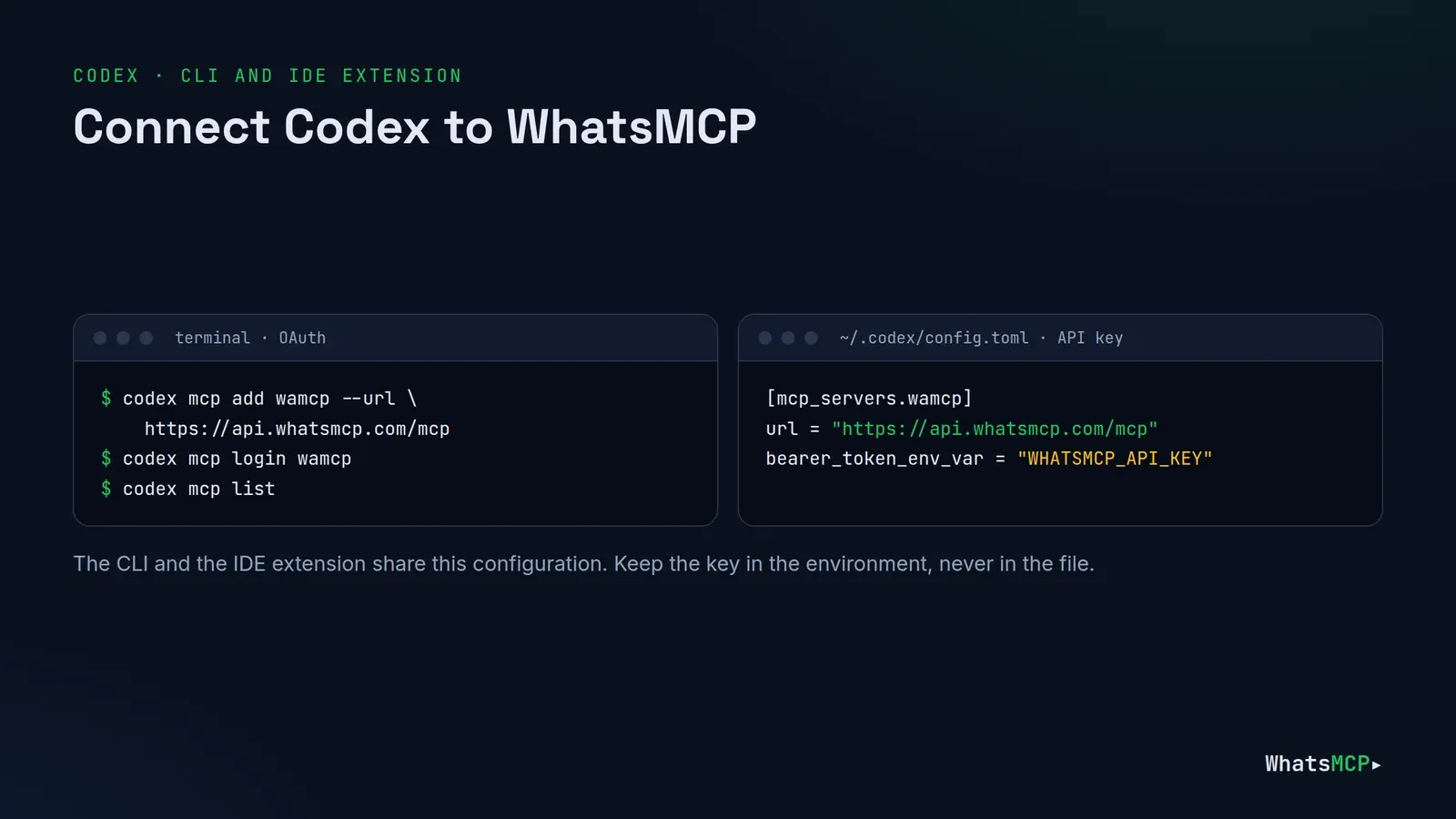
Two commands add the server and sign you in:
codex mcp add wamcp --url https://api.whatsmcp.com/mcp
codex mcp login wamcp
The login opens your browser at the WhatsMCP console, where you approve the connection. Nothing secret is written to your config, and you can revoke Codex on its own at Console → Connections. codex mcp list shows the server once it's added.
The same thing written straight into ~/.codex/config.toml:
[mcp_servers.wamcp]
url = "https://api.whatsmcp.com/mcp"
With no token or headers configured, Codex uses OAuth for the server.
With an API key
For CI, a remote box, or anywhere a browser sign-in is awkward, use a key from Console → API keys — keys look like wamcp_live_… and are shown once — and keep it in the environment rather than in the file:
[mcp_servers.wamcp]
url = "https://api.whatsmcp.com/mcp"
bearer_token_env_var = "WHATSMCP_API_KEY"
export WHATSMCP_API_KEY=wamcp_live_…
Codex sends it as Authorization: Bearer …. If you'd rather set headers yourself, http_headers takes static values and env_http_headers maps a header to an environment variable — for example x-api-key:
[mcp_servers.wamcp]
url = "https://api.whatsmcp.com/mcp"
env_http_headers = { "x-api-key" = "WHATSMCP_API_KEY" }
CLI and IDE extension share the setup
The Codex CLI and the IDE extension read the same MCP configuration — ~/.codex/config.toml, or a project's .codex/config.toml for a trusted project — so you set WhatsMCP up once.
Keep the tool list tight
Codex can limit what an MCP server exposes. For a read-only helper, allow just what it needs:
[mcp_servers.wamcp]
url = "https://api.whatsmcp.com/mcp"
enabled_tools = ["wa_list_accounts", "wa_list_messages", "wa_get_chat", "wa_get_message"]
What Codex can do on WhatsApp
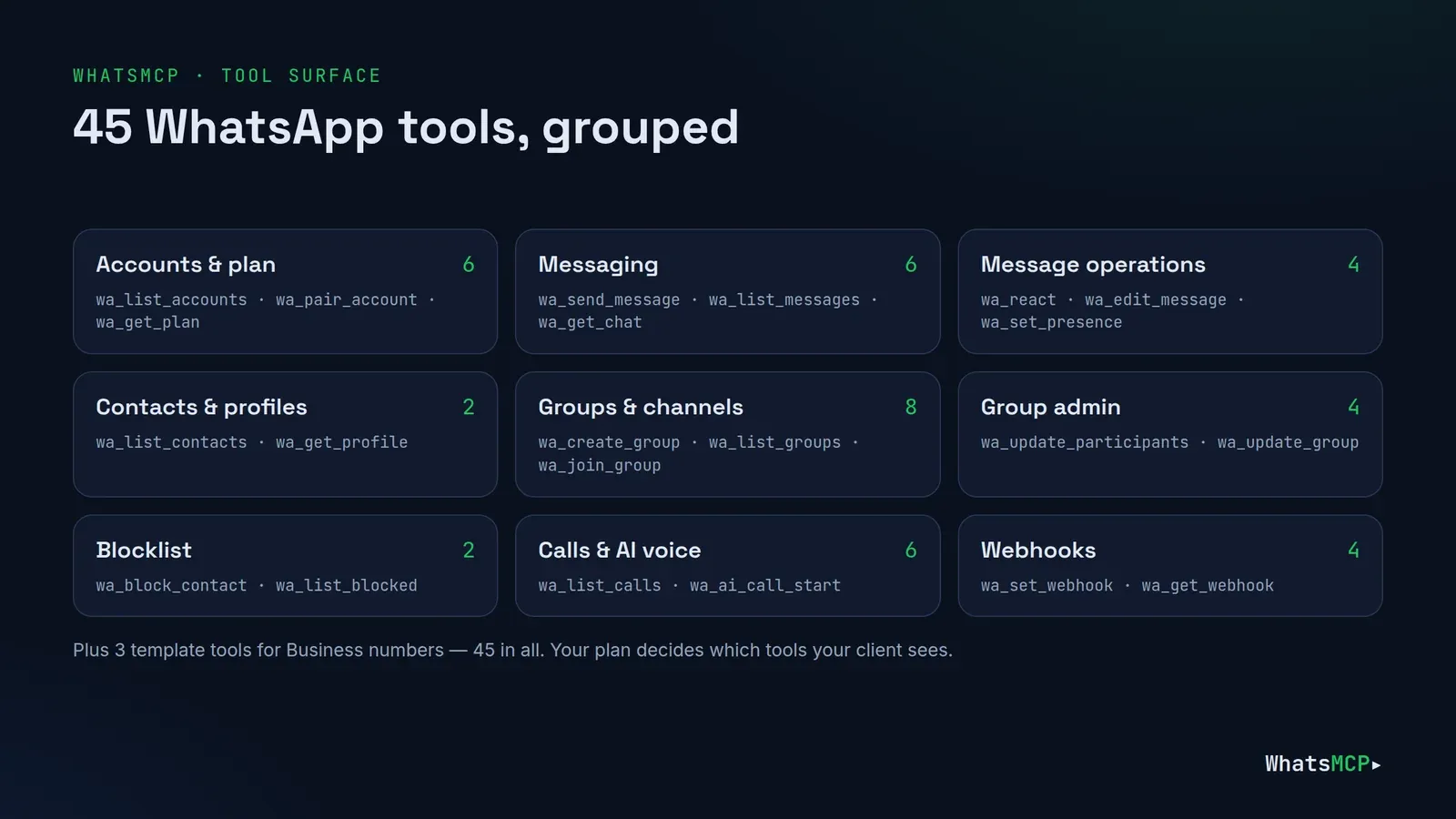
WhatsMCP has 45 tools. A Personal number can use up to 42 of them — messaging, message operations, contacts and profiles, groups and channels, group administration, blocklists, calls and AI voice agents, webhooks and pairing. A Business number uses 15, covering messaging, templates and webhooks under Meta's 24-hour window. Your plan decides which tools Codex sees.
Sign-in is standard OAuth 2.1 with PKCE: Codex discovers WhatsMCP's metadata, registers itself and completes the flow in your browser. The resulting token is bound to WhatsMCP and its refresh token rotates on every use.
Prompts for developers
1. Reproduce a bug from a real message.
"Fetch the last message my test number received from +44 7700 900111 with wa_get_message, save the raw JSON as a fixture, and write a failing test for our parser."
2. Notify me when it's done.
"Run the full test suite. When it finishes, send me a WhatsApp message with the pass/fail counts and the slowest test."
Codex runs the command, then calls wa_send_message to your own number.
3. Scaffold a webhook receiver.
"Write a small HTTP handler that verifies WhatsMCP's webhook signature, logs each inbound message, and register it with wa_set_webhook at my tunnel URL."
wa_set_webhook returns the signing secret once — have Codex put it in your .env. See WhatsMCP webhooks: setup guide.
4. Triage beta feedback.
"Read this week's messages in the 'Beta testers' WhatsApp group, list each bug report with who sent it, and point me at the code most likely responsible."
5. Ship a template (Business numbers).
"Create a utility template order_shipped with name, order number and date variables, check its status, and once it's approved send it to my test number."
wa_create_template, wa_list_templates, then wa_send_message. Template rules are in How to write WhatsApp message templates Meta approves.
Troubleshooting
codex mcp logindoesn't open a browser. Copy the URL it prints into a browser on the same machine, or use the API-key setup on headless machines.- 401 with an API key. Make sure
WHATSMCP_API_KEYis exported in the shell Codex runs from, and that the key wasn't revoked. - The server doesn't appear. Run
codex mcp list; check that the TOML table is named[mcp_servers.wamcp]and thaturlis set. - A tool is missing. It isn't in your plan, it's Personal-only on a Business number, or
enabled_toolsfiltered it out.wa_get_planand Console → Help show what's included.
Good habits
- Use a test number while developing; keep production numbers on production keys.
- Secrets in the environment, never in
config.toml. - Personal numbers connect as linked devices, which falls outside WhatsApp's terms of service; for customer messaging, use an official Business number.
- Review access at Console → Connections and Console → API keys.
FAQ
Does Codex support remote MCP servers?
Yes. Codex supports Streamable HTTP MCP servers configured by url, with OAuth sign-in through codex mcp login or a bearer token from an environment variable.
Do the CLI and the IDE extension need separate setup?
No. They share the same MCP configuration on the same machine.
Which numbers can I use?
Both Personal and official Business numbers, through the same endpoint. wa_list_accounts shows each number's kind and features.
Does this work with other clients?
Yes — see the guides for Claude, ChatGPT, Grok and Cursor.
Get started
Create your free WhatsMCP workspace, link a test number, and run two commands. The complete tool reference is at whatsmcp.com/docs/mcp.
About WhatsMCP Engineering
Engineering Team at WhatsMCP. The team building WhatsMCP's MCP server and SIP bridge — the people who wrote the code these posts describe.