Call Customers on WhatsApp from Your Business Number
A WhatsApp Business number used to be a one-way street for voice: customers could call you, but you could not call them. WhatsApp's Business Calling now lets a business ring a customer's WhatsApp directly, as long as the customer has said yes. That makes it a natural fit for sales follow-ups, delivery questions and support callbacks: the call arrives in the same chat as your messages, under your business name, and costs the customer nothing.
This guide shows how to call customers on WhatsApp from your Business number with WhatsMCP: turning calling on, getting each customer's permission the way WhatsApp requires, and placing the call from Pipedrive or from a SIP phone. It also covers WhatsApp's limits, what calls cost, and what to do when a call is refused.
What you need
- A Business (official) number in WhatsMCP on a Business plan. Every Business plan — Starter, Growth and Scale — includes WhatsApp calling, and your workspace's first Business plan starts with a 7-day free trial. Connecting a number is Add a number → WhatsApp Business → Connect with Facebook. Not sure which kind of number you need? Read Personal WhatsApp vs WhatsApp Business API.
- A country where businesses may call out. Business-initiated calling works from every country the Cloud API supports except the United States, Canada, Egypt, Vietnam and Nigeria. The rule applies to your business number's country code; the customers you call can be anywhere.
- Meta's prerequisites. Your WhatsApp Business Account needs a messaging limit of at least 2,000 unique recipients a day and a valid payment method, since Meta bills the calls.
- Pipedrive, connected to WhatsMCP, with the number syncing. Connect WhatsApp to Pipedrive walks through it. Pipedrive's call window is where you see whether a customer can be called before you dial. A desk phone or softphone works too, without that check.
- The workspace owner's account. Meta charges your business for every call, so only the owner can turn calling out on.
How a business call works
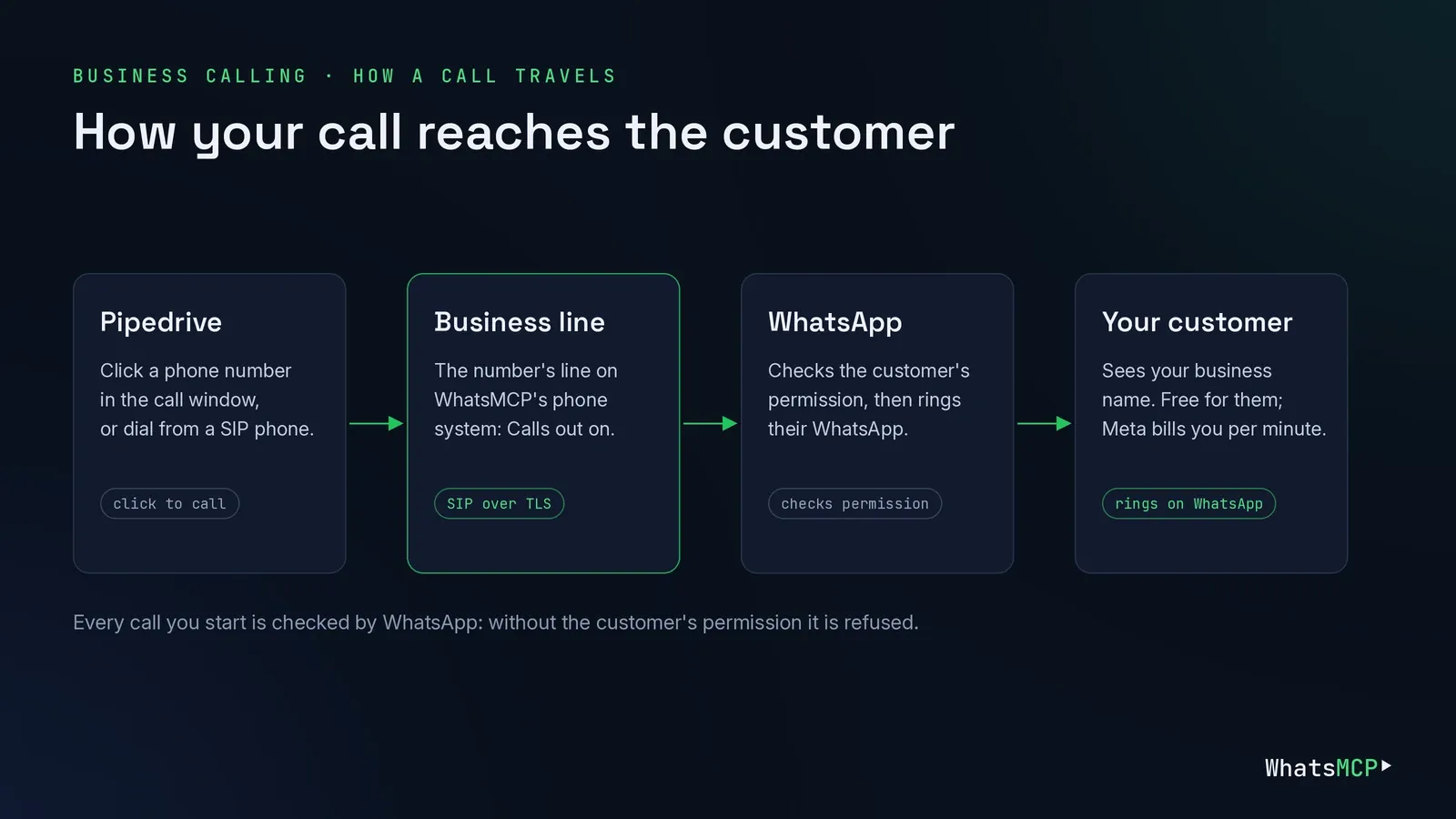
Your Business number takes WhatsApp calls on a line of its own on WhatsMCP's phone system. Customers who call the number ring whatever is registered on that line: the Pipedrive call window, a desk phone or a softphone. Turn on Calls out and the same line can also call WhatsApp users.
Every call you start goes through WhatsApp, which checks one thing first: has this person allowed your business to call them? Without that permission WhatsApp refuses the call. Permission belongs to the customer alone. They can give it, limit it to a week, or take it back at any time.
Step 1: Give the number its calling line
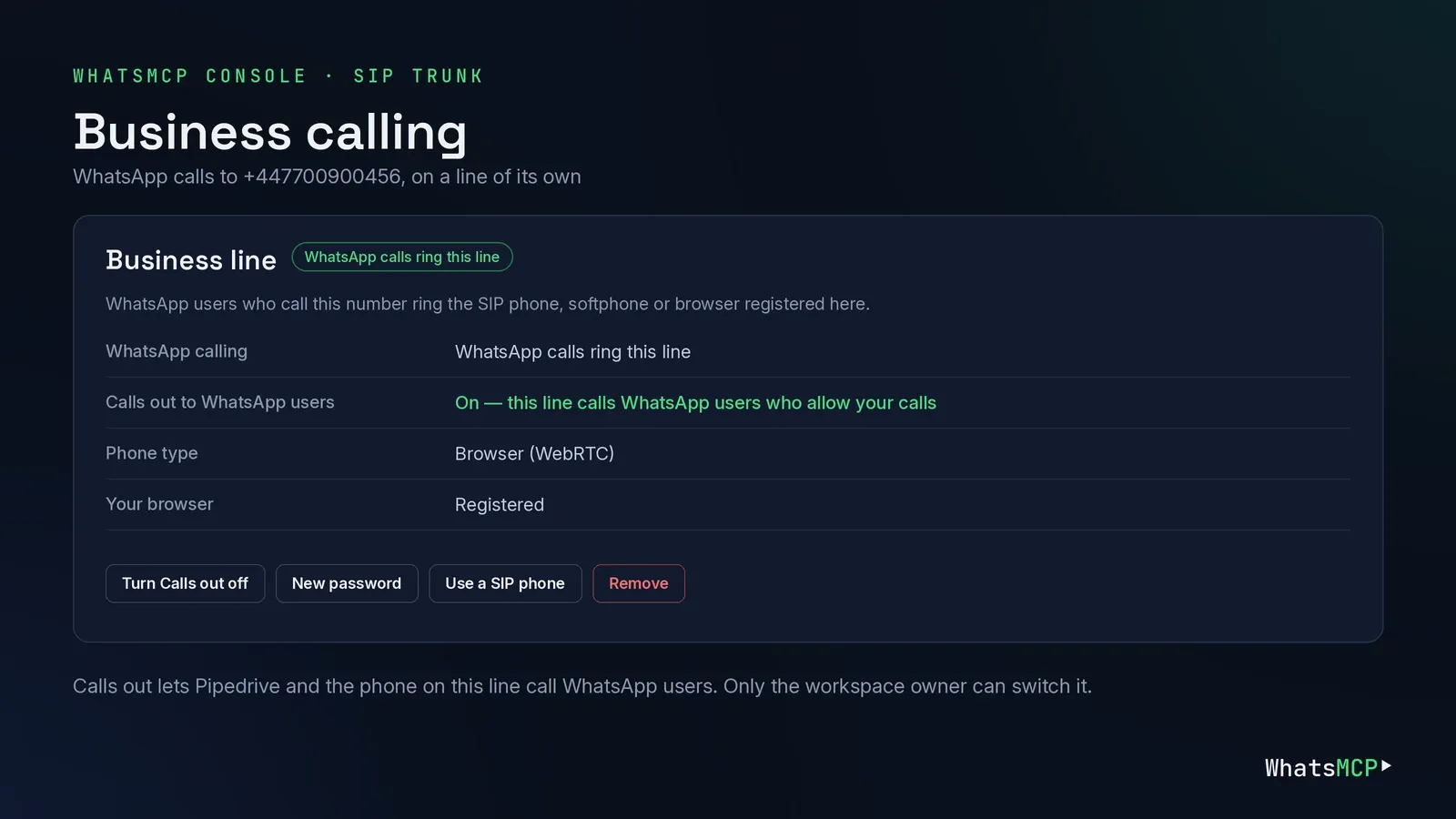
- In the console, pick the Business number and open SIP trunk in the menu. For a Business number the page is called Business calling.
- If the page offers to create the line, press Create the line and confirm. The number's SIP username and password are shown, for a phone you may register later.
- The Business line card now reads WhatsApp calls ring this line. If WhatsApp calling shows as off, press Turn WhatsApp calling on.
Step 2: Turn on Calls out
Still on Business calling, the workspace owner presses Turn Calls out on. The confirmation says what the switch means: Meta charges your WhatsApp Business account for each call, and a person must allow your calls first.
The switch also turns on WhatsApp's callback setting: anyone who calls this number allows you to call them back. Within moments the row Calls out to WhatsApp users reads On — this line calls WhatsApp users who allow your calls. If Meta refuses the callback setting, the page says so; turn it on for the number in WhatsApp Manager instead.
Step 3: Let Pipedrive place the calls
- Open Integrations in the console. On the Pipedrive card, find the Business number. It must be syncing; the Pipedrive guide covers the Sync button and its CRM add-on.
- Next to Calls in Pipedrive, press Turn on and confirm.
This moves the number's line to the browser, so Pipedrive's call window becomes the phone that rings and calls. A desk phone or SIP app registered on the number stops ringing until you switch the line back on the SIP trunk page.
Step 4: Get the customer's permission
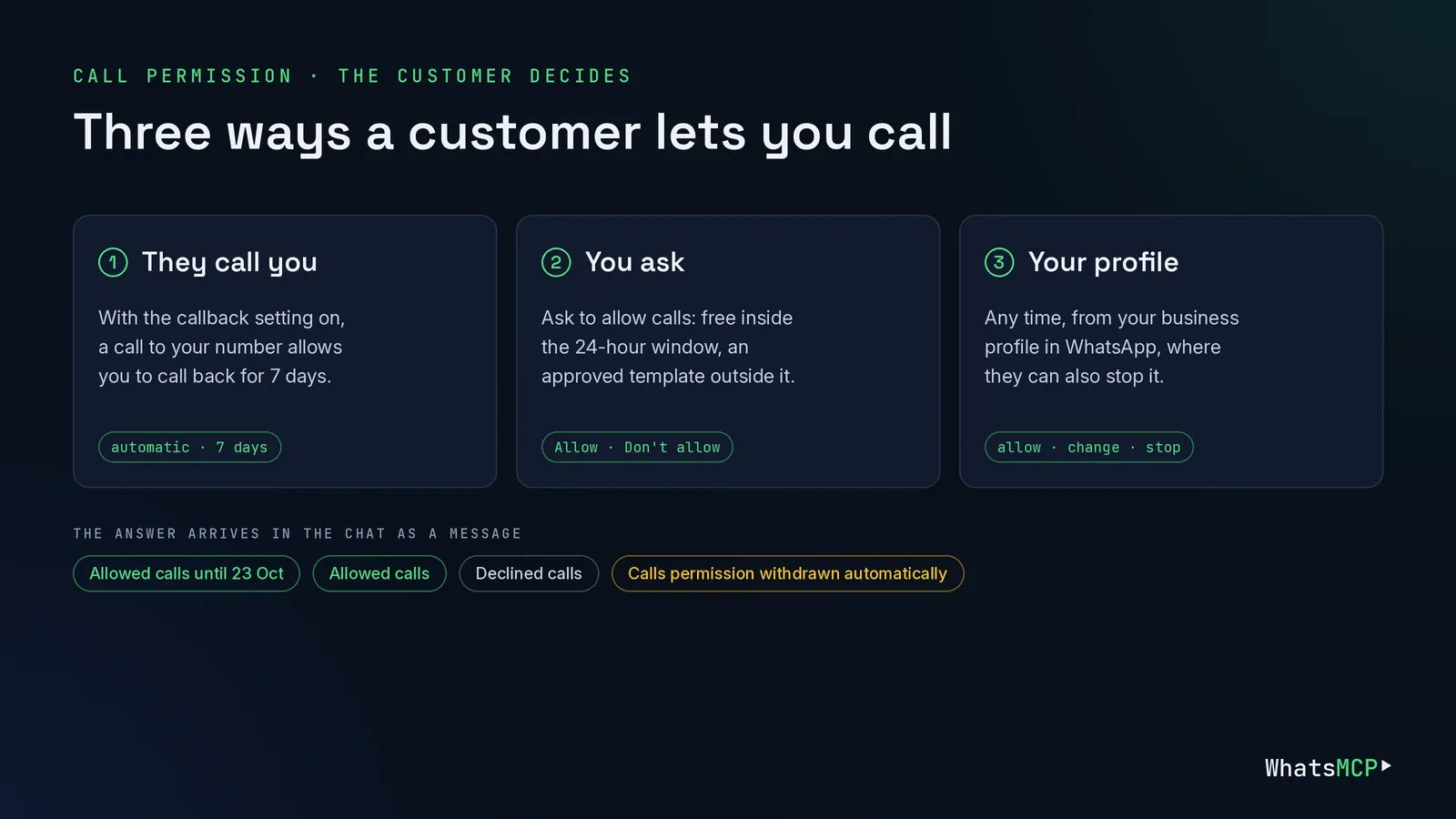
WhatsApp gives a customer three ways to let your business call them.
- They call you first. With the callback setting on (Step 2), a customer who calls your number automatically allows you to call them back for 7 days. "Call us on WhatsApp" on your website or in a message is the easiest way to start.
- You ask. From the Pipedrive call window, Ask to allow calls sends WhatsApp's call permission request. Inside the 24-hour customer service window it goes as a free interactive message. Outside it, WhatsApp only takes it as an approved template.
- They allow it from your profile. A customer can allow calls, or stop them, at any time from your business profile in WhatsApp.
The customer sees your request in the chat with Allow and Don't allow, and can allow calls for 7 days or permanently. Their answer lands in the conversation as a message: Allowed calls until 23 Oct, Allowed calls (no expiry), Declined calls, or Calls permission withdrawn automatically. You see it in the Pipedrive panel, and AI agents see it too.
Create the permission template once. Open Templates in the console and create a template in the Utility or Marketing category. Write a short body that explains why you'll call, for example "Can we call you on WhatsApp about your order? You can change this any time." Tick Ask to allow calls. That adds WhatsApp's request, which can't be combined with buttons. Leave out variables, so the call window can send the template as it is. Meta reviews it, usually within minutes. The rules that get templates approved are in How to write WhatsApp message templates Meta approves.
Step 5: Call from Pipedrive
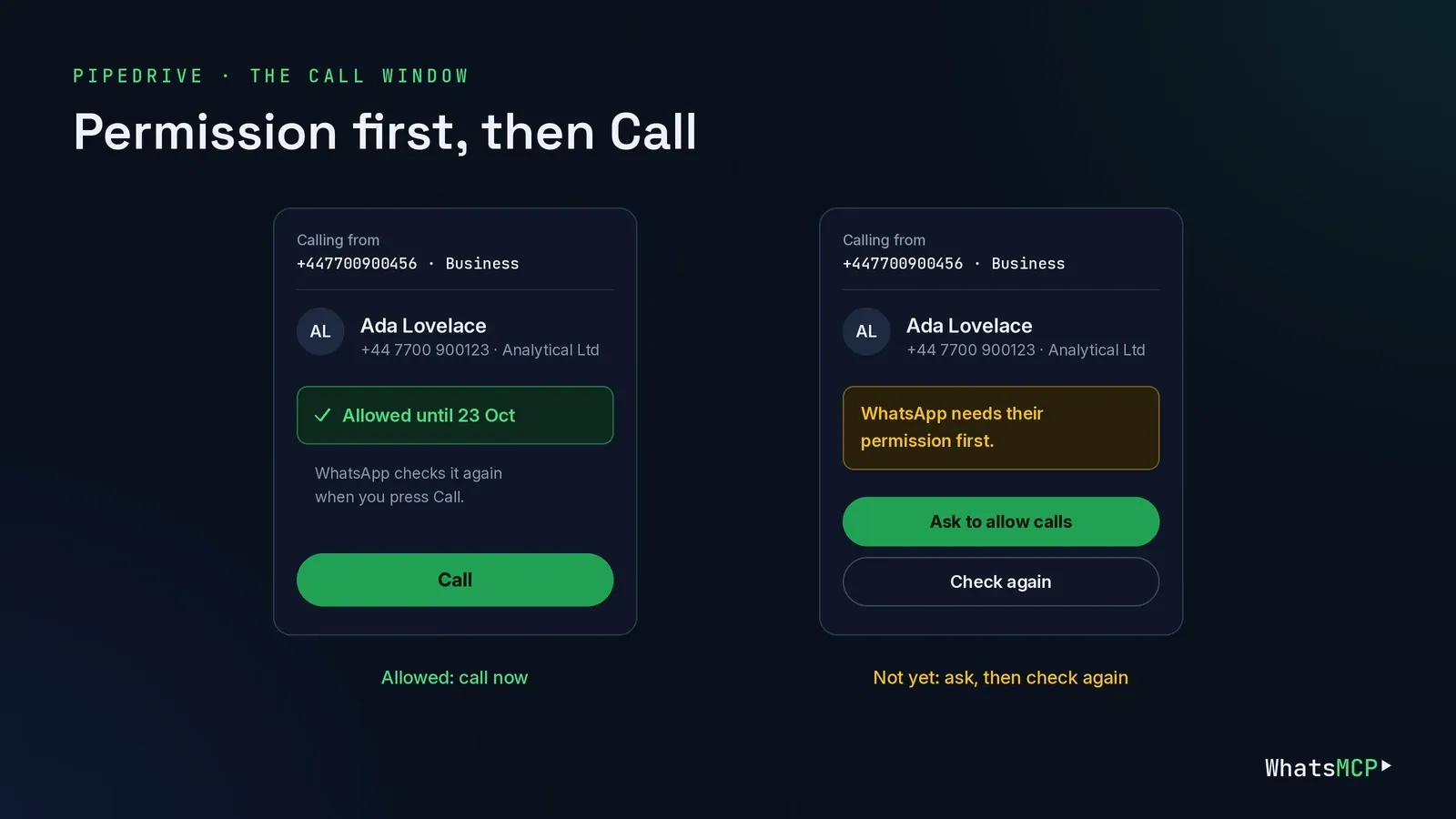
Click a person's phone number in Pipedrive. The call window opens with your numbers in its picker, and a Business number shows as +447700900456 · Business. It reads · Business (receives calls) while Calls out is off. Before you dial, the window asks WhatsApp whether the call is allowed:
| The window says | What it means |
|---|---|
| Allowed until 23 Oct, or Allowed, no expiry | The customer allowed calls. Press Call. |
| WhatsApp needs their permission first. | No permission yet. Press Ask to allow calls, then Check again once they answer. |
| You can ask again on … | WhatsApp's request limit for this person is reached until that time. |
| WhatsApp's daily call limit for this person is reached; try after … | Allowed, but call again after that time. |
| Couldn't check with WhatsApp. | The check failed. You can still try; WhatsApp has the final say. |
After you ask, the window says Request sent — they'll see Allow / Don't allow in WhatsApp. When you call, the customer's WhatsApp rings with your business name, and the window shows Connecting…, then the live call with mute and hang-up. A call WhatsApp turns down ends with WhatsApp refused the call. They may not have allowed calls, or withdrew it.
Calling from a desk phone or softphone
With the line on a SIP phone (on the SIP trunk page, Use a SIP phone), dial the customer's full international number as digits only: country code first, no +, no leading 00. For example, dial 447700900123 for +44 7700 900123. The phone gets no permission check before dialing, so WhatsApp simply refuses a call the person hasn't allowed. A line carries one call at a time.
WhatsApp's rules for business calls
| Rule | Limit |
|---|---|
| Permission | Needed before every business-initiated call; only the customer grants or revokes it |
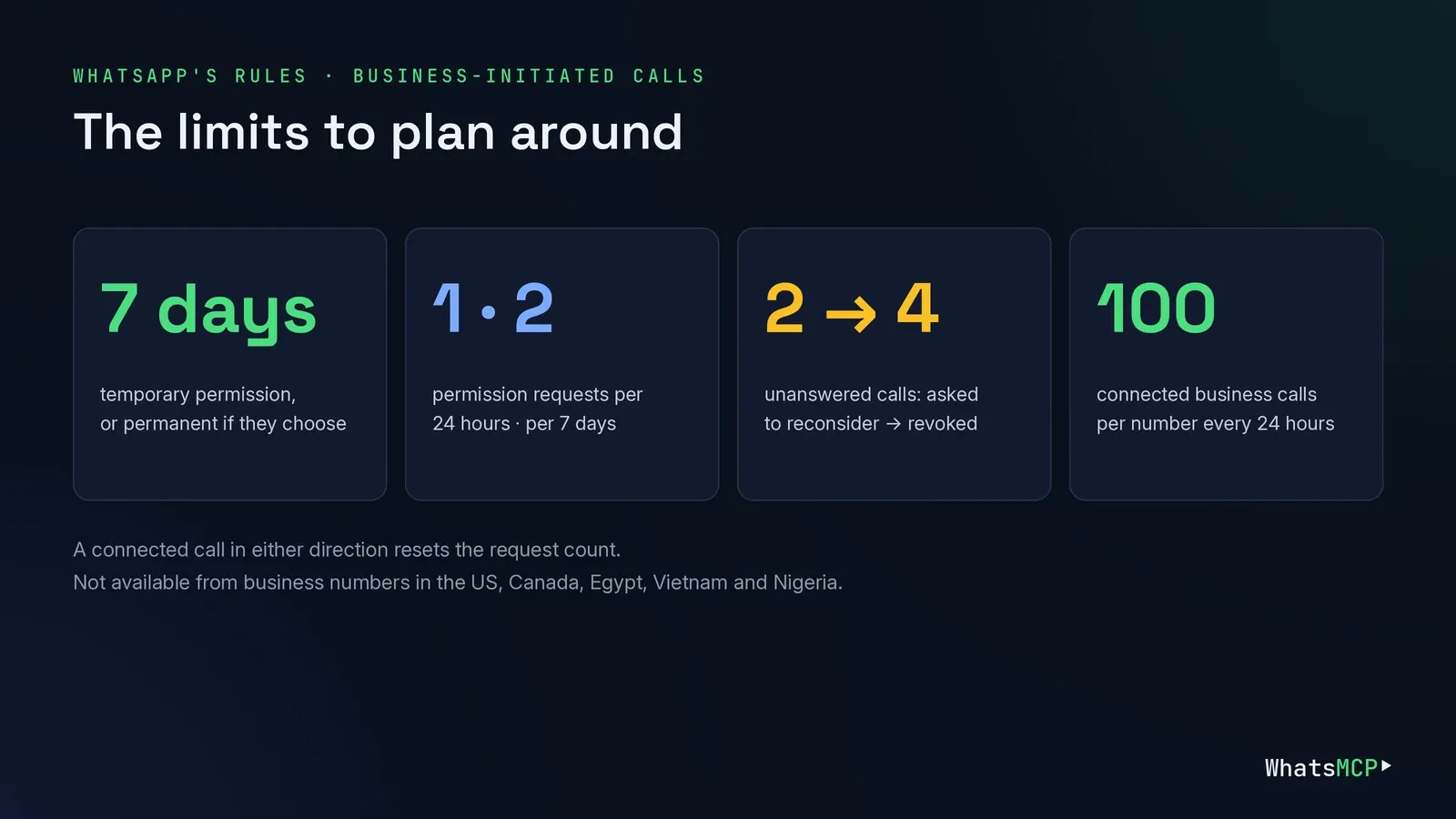
| Temporary permission | 7 days (168 hours) from when they allow it |
| Permanent permission | Until the customer takes it back |
| Permission requests | 1 per 24 hours and 2 per 7 days for each customer, counting free requests and templates alike; a connected call in either direction resets the count |
| Unanswered calls | After 2 in a row, WhatsApp asks the customer to reconsider; after 4, the permission is revoked |
| Connected calls | Up to 100 business-initiated calls per number every 24 hours |
| Where | Not from business numbers in the US, Canada, Egypt, Vietnam or Nigeria |
WhatsApp can also pause business-initiated calling for a number that draws too much negative feedback from the people it calls. The simplest protection is to call people who are expecting it: ask first, then call while the reason is fresh.
What calls cost
- Customers calling you: free for them and for you.
- You calling customers: Meta charges your WhatsApp Business Account by the minute. It counts in six-second pulses and prices each call by the called number's country, with monthly volume tiers. Meta's current rates are on its Calling API pricing page.
- Permission requests: charged like any other message, so a template sent outside the 24-hour window costs what a template costs.
- WhatsMCP: calling is part of every Business plan, with no per-minute charge from us. Pipedrive's connector is a per-number add-on, priced on its Sync button.
Ask for permission with an AI agent
WhatsMCP's MCP server and REST API can do the asking, so an AI agent can line up callbacks before a person dials.
- Create the template once. "Create a utility template call_permission in en_GB asking the customer to allow calls about their order."
wa_create_templatetakescall_permission: trueand refuses buttons beside it. - Send it. "Send the call_permission template to +44 7700 900123 from our Business number." This uses
wa_send_messagewith the template. - Watch for the answer. "Tell me when they answer the call request." The reply arrives as a message of kind
call_permission, whichwa_list_messagesreturns like any other message.
The call itself is placed from Pipedrive or a phone on the line. To connect an agent, see the guides for Claude, ChatGPT and Codex.
Troubleshooting
- Pipedrive says "Turn on Calls out for +44 … in WhatsMCP". The switch is off for that number; see Step 2.
- The console says "Turn WhatsApp calling on first." Calls out needs a line that takes calls. Turn WhatsApp calling on, then Calls out.
- "… has no approved call-permission template to ask with." Outside the 24-hour window, WhatsApp only takes a template. Create one with Ask to allow calls and no variables, and wait for Meta to approve it.
- "WhatsApp takes no more requests to this person for now." You hit the 1-a-day or 2-a-week request limit. The window shows when you can ask again, and a connected call in either direction resets the count.
- "WhatsApp refused the call." The customer hasn't allowed calls, the permission expired, or they withdrew it, perhaps automatically after 4 unanswered calls. Check again, and ask if you may.
- The console warns that WhatsApp did not turn on its callback setting. Turn it on for the number in WhatsApp Manager, so people who call you can be called back.
- The desk phone stopped ringing. Calls in Pipedrive moved the line to the browser. Switch it back on the SIP trunk page if you want the phone instead.
FAQ
Can customers call my Business number too?
Yes. A customer calling your number rings the Pipedrive call window, or whichever SIP phone or browser is registered on the line. It's free for them, and with the callback setting on it also lets you call them back for 7 days.
Do I need Pipedrive to call customers?
No, but it's the easiest way. Pipedrive's call window checks permission before you dial and lets you ask for it in one click. A desk phone or softphone on the line can dial too, without that check.
How long does a customer's permission last?
Either 7 days from when they allow it, or permanently if they choose that. Either way they can revoke it at any time, and 4 unanswered calls in a row revoke it automatically.
What does a call cost?
Customers never pay. Calls you start are billed to your WhatsApp Business Account by Meta, per minute and by the called country. WhatsMCP adds no per-minute charge.
Can I call from a Personal number?
This guide is about Business (official) numbers, which follow WhatsApp's permission rules. A Personal number connects as a linked device and calls like a phone through WhatsMCP's SIP bridge, as in Connect Asterisk to WhatsApp with a QR code.
Get started
Create your WhatsMCP workspace, connect a Business number, and turn on Calls out. Then ask your next customer whether you can call. The MCP reference and REST docs cover the rest of what the number can do.
About WhatsMCP Engineering
Engineering Team at WhatsMCP. The team building WhatsMCP's MCP server and SIP bridge — the people who wrote the code these posts describe.